
This article outlines how to send a particular event to Meta when a user visits a specific page on your website
What Are Event URLs?
"Event URLs" is a setting that lets you trigger an event to Meta when someone visits specific page on your website (note, this will happen every time a user visits this page unless you specific blocking rules)
For example:
Send a "Lead" event when someone visits
/thanks-for-booking-a-call.htmlpage on your websiteSend a "Search" event when someone visits
/search-resultspage on your websiteSend a "Subscribe" event when someone visits
/thanks-for-subscribingpage on your website
If you setup event URLs for event tracking, it may be useful to setup Advanced Blocking Rules to ensure you block multiple visits from the same user/IP address or bot traffic etc.
How to Create an Event URL in PixelFlow
1. Click on "Add"
Go to your PixelFlow dashboard Overview page and click on the "Add URL" in the Events URLs section

2. Enter URL and Choose Event
In the window that pops up, enter the full URL of the page you want to assign to a particular event and choose the event from the dropdown list, then press "Add URL"
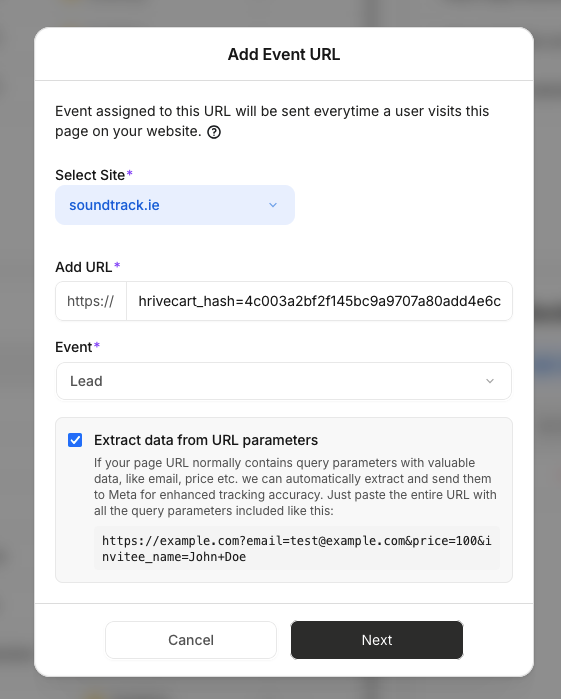
PixelFlow automatically tracks any page if it STARTS WITH the URL you have specified.
For example if you would like to track both of these pages:
mywebsite.com/product/ergonomic-plastic-computer
mywebsite.com/product/gorgeous-granite-table
You could simply add mywebsite.com/product as the page URL, select the event and all pages that START WITH that URL will trigger that event
How to Enrich Your Events With More Data
There are two ways to enrich events tracked via URL with valuable user or product data:
Extracting Data from URL Parameters
PixelFlow can automatically extract valuable user data from URL query parameters and include it in your Meta pixel event payload. This is especially useful when tracking pages that contain user information in the URL.
Common use cases:
Thank you pages with email confirmation:
/[email protected]&name=JohnSearch results with query data:
/search?query=shoes&category=mensOrder confirmation pages with product data:
/order-confirmation?total_price=300&quantity=2
How to Enable Parameter Extraction
When adding or editing an Event URL:
Enable the feature: Check the "Extract data from URL parameters" checkbox
Include parameters in your URL: Add actual query parameters to your URL (e.g.,
mywebsite.com/thanks?email=value&phone=value)Map parameters to Meta fields: PixelFlow will automatically detect your parameters and suggest matching Meta fields:
email → Email
phone → Phone
Customize mappings (optional): Adjust the suggested mappings using the dropdown selectors
Confirm: Review the extraction configuration before saving
Here is the list of supported Meta parameters:
Value
Country
State
City
Postal code
Quantity
Currency
Email
Phone
First name
Last name
Important notes:
Each Meta parameter can only be mapped to one URL parameter
If your URL normally has parameters but they're not shown in the configuration, include example values (e.g.,
?email=example&name=example) to enable detectionThe actual values will be extracted dynamically when users visit the page - you only need to specify the parameter names
Example:
If you track the URL mywebsite.com/[email protected]&order_value=99.99¤cy=USD, PixelFlow will:
Extract the email and send it as user data to Meta
Extract order value and currency for enhanced conversion tracking
Automatically hash sensitive data (like email) before sending to Meta for privacy compliance
Enriching by Adding Classes to Page Elements
You can also enrich events by adding classes to the appropriate elements on the page. Read more on this in the How to Track Website Elements via Classes guide.
Examples:
When a user visits your
/thanks-for-booking-a-callpage - extract this data by adding form event classes to the user details fields.When a user visits your
/order-confirmation page- extract this data by adding eCommerce event classes to the user details fields
PixelFlow will extract the data automatically from any sections that you tag using classes and will send to Meta improving your event match quality and enhancing data attribution etc. resulting in lower costs, better accuracy and cheaper customer acquisition costs
Note: Unless you specific a blocking rule for an event URL, the event will happen every time a user visits this page.
Changes may take up to 5 minutes to apply in your script, but new website visitors will receive the update immediately.
Automatic Script Updates: Your PixelFlow script will automatically be updated to apply any new changes. New website visitors will receive an update immediately, those who currently use your website will receive it in up to 5 mins (when script cache is invalidated). No additional action is required from your end. However, if you added your script before the 27th November 2025, you’ll need to update it one last time to the latest version of the script which will update itself going forward