
Event Blocking Rules
Overview
Event Blocking Rules are advanced filters that control when events should or should not be sent to Meta's Conversions API. They help you improve data quality by preventing low-value or duplicate events from reaching Meta Ads Manager, ensuring more accurate reporting and better campaign optimization.
What Blocking Rules Do
Blocking Rules serve two main functions:
Improve data quality – Prevent low-value or duplicate events from polluting your Meta Ads Manager data
Increase reporting accuracy – Ensure your conversion metrics reflect real user actions, not bots or page refreshes
Pro tip: This is a powerful feature, but it can reduce signal quality if used incorrectly. Read this guide fully before implementing any rules to understand the tradeoffs.
Quick Reference Guide for Blocking Rules:
Blocking Rule | What It Does |
|---|---|
Block if No Meta Click ID (fbclid) | Only tracks events from people who clicked a Facebook ad, filtering out all other traffic sources |
Block if No URL Query Parameters | Prevents events from firing when specific URL parameters are missing (useful for dynamic pages) |
Block duplicate events from same session | Stops the same event from counting multiple times during a single user session |
Block duplicate events from same URL | Prevents repeat events when users refresh the same page (like a thank-you page) |
Block duplicate events from same referrer | Blocks duplicate events based on where the user came from |
Block duplicate events from 3rd-party scripts | Prevents other tracking tools (non-PixelFlow) from creating duplicate events |
Why Filter or Block Events?
The Balance: Quality vs. Quantity
In most cases, you should avoid filtering events because Meta's algorithm improves with more data. The larger your dataset (purchases, leads, micro-conversions), the better Meta becomes at finding lookalikes and refining delivery—especially when scaling or training new campaigns.
However, low-quality data leads to weak optimization.
If every bot click, page reload, or duplicate thank-you page is tracked as a conversion, you're teaching Meta to optimize for the wrong actions. This inflates your reported ROAS while actual ROI declines.
The sweet spot: Block obvious junk traffic (bots, repeated refreshes, fake clicks) while passing through all legitimate conversions—even those that didn't originate from Facebook or Instagram directly (phone orders, organic sales). This gives Meta a clearer picture of your ideal customer.
Key principle: Quality matters more than quantity, but the algorithm still needs a healthy flow of signals to learn effectively.
Too much filtering → Lack of signals, poor optimization
Too little filtering → Messy data, inaccurate attribution
Common Use Cases
Here are situations where blocking rules can be useful:
1. Prevent Duplicate Tracking Scripts
Block Meta events tracked by third-party scripts (non-PixelFlow) to avoid duplicates. PixelFlow sends events both client-side and server-side with shared event IDs for deduplication. Running other scripts alongside PixelFlow—like Native Meta Pixel or Webflow eCommerce tracking—will produce duplicates unless you apply blocking rules.
2. Filter Bot Traffic & Page Refreshes
Block obvious bot traffic or users refreshing thank-you pages multiple times to prevent conversion inflation.
3. Campaign-Only Attribution (Use with Caution)
Only send events that can be traced back to someone clicking a Facebook ad. Note: Excluding non-Meta conversions reduces data for audience building and optimization, even if you're not actively using lookalike audiences.
Caution: Used correctly, blocking rules improve conversion attribution accuracy. Used too aggressively, they reduce the volume of data Meta receives, limiting its ability to refine audiences and drive conversions.
How to Access Blocking Rules
You can configure Blocking Rules during initial setup or by navigating to the Blocking Rules section in your dashboard overview page.
Best practice: Combine one or two rules that fit your specific use case. See examples at the bottom of this article for guidance.
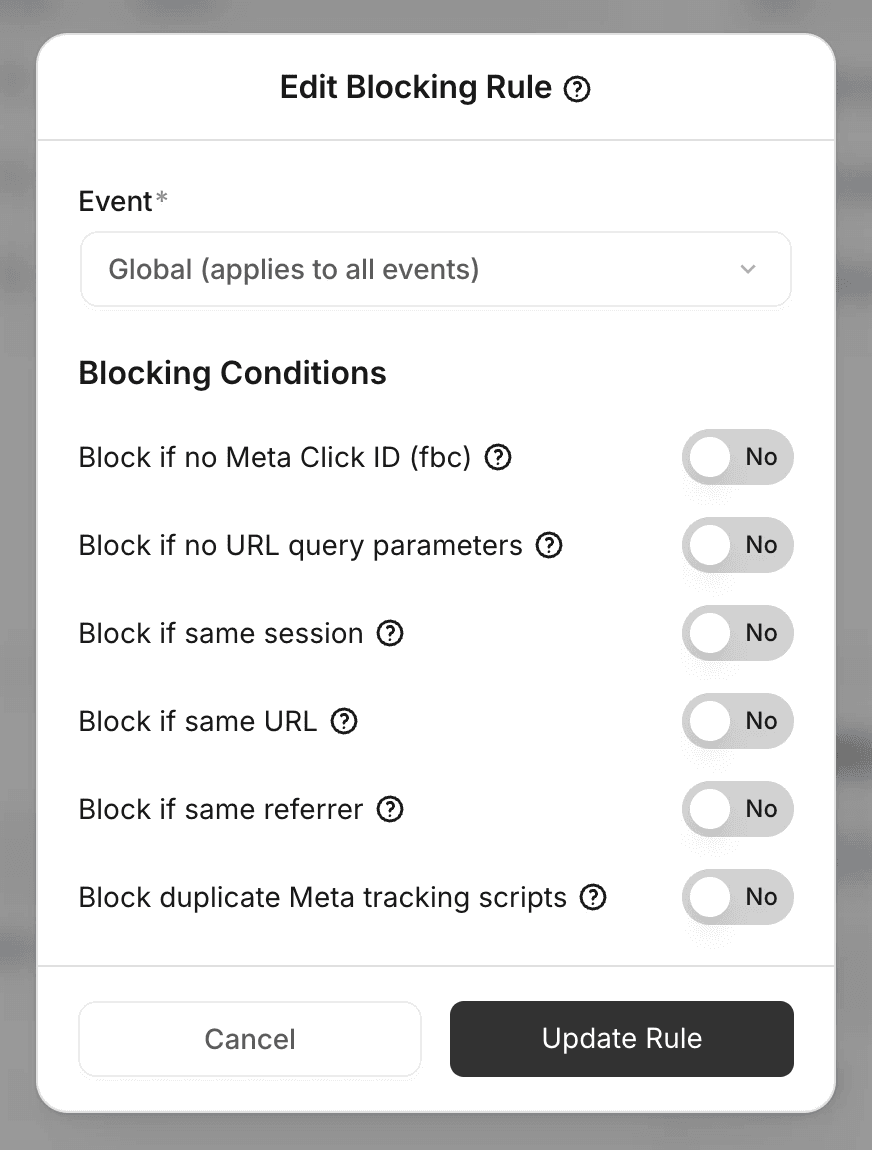
Understanding How Blocking Rules Work
Rule Types & Priority
Global rules – Apply to all events across your website
Event-specific rules – Apply only to particular events like "Purchase" or "Lead"
Priority: Event-specific rules override global rules
Time Intervals
When using duplicate prevention rules, set an interval (seconds, minutes, or hours) to define how long to block similar events:
30 minutes for leads
1 hour for purchases
24 hours for high-value conversions
Rule order doesn't matter. Every event-specific rule is self-contained and will override global rules. Use global rules as a safety net, then add event-specific overrides as needed.
Available Blocking Rules
Quality Control Rules
Block if No Meta Click ID (fbclid)
Filter out traffic that didn't originate from clicking a Facebook ad campaign as their "last touch." Only events with Meta's click identifier will be sent.
Warning: This rule will exclude all organic traffic, direct visits, and conversions from other channels. This reduces the data Meta can use to build better lookalike audiences and optimize delivery.
Block if No URL Query Parameters
It makes sense to apply this rule only if your setup provides for query parameters for legit page visit, e.g. if a user is always redirected to a particular page with url query parameters, e.g. my-site.com/schedule?invitee=john&date=23.
Applying this rule to my-site.com/schedule url will prevent sending false Schedule events when the user lands on that page directly, without being properly redirected with required url query parameters.
This is useful for filtering bot traffic hitting dynamically generated URLs.
Example: If your thank-you page has a dynamic URL like yoursite.com/book-a-call/call-booked-john-doe-8pm-24-sept, you can block yoursite.com/book-a-call/ when no query parameters are present.
Duplication Prevention Rules
These rules prevent the same event from being counted multiple times:
Block duplicate events from the same session – Prevents duplicates from the same user session. Do not apply this rule globally otherwise only first event will be tracked for a user for his entire session. It makes sense to apply this rule only to a particular event, e.g. SubmitApplication and if you explicitly want to make sure user converts only onces for this event per session.
Block duplicate events from same URL – Blocks repeated events from identical URLs (e.g., thank-you page refreshes)
Block duplicate events from same referrer – Blocks duplicates based on the referring page
Block duplicate events from 3rd-party (non-PixelFlow) scripts – Prevents external tracking scripts from sending duplicate events
Most duplication rules can be combined with a timeframe option to block duplicates within a specified interval.
Important: Block duplicate events from same referrer should not be used alone, as it is too broad and may block legitimate events across multiple pages. Always combine it with event-specific rules or other blocking conditions for precise deduplication.
Understanding Same URL vs. Same Referrer
These two blocking rules work differently and serve distinct purposes:
Same URL – Blocks if the current page matches
Example:
google.com → yoursite.com/page1 (referrer: google)
facebook.com → yoursite.com/page1 (referrer: facebook)
Use case: Prevent duplicate PageView events on landing pages when users arrive from different ad campaigns within a short timeframe.
Same Referrer – Blocks if the previous page matches
Example:
google.com → yoursite.com/page1 (referrer: google)
google.com → yoursite.com/page2 (referrer: google)
Use case: Prevent tracking multiple page visits from the same ad click (e.g., user opens multiple product pages from a single Google ad).
Key Difference:
same_url = repeated visits to the same destination
same_referrer = repeated traffic from the same source
Best practice: Combine both for stricter deduplication
Example Setup:
Interval: 300 seconds
same_url
same_referrer
Blocks only if both the current page AND referrer match (e.g., page refresh, back/forward navigation).
Use case: E-commerce checkout – prevent duplicate InitiateCheckout events when users navigate back and forth during the checkout flow from the same entry point.
Best Practices
Start simple – Begin with basic global rules, then add event-specific overrides as needed
Monitor your data – Regularly check conversion data to ensure rules aren't blocking legitimate events
Match intervals to event value – Use shorter intervals for high-frequency events (30 min) and longer intervals for valuable conversions (1-24 hours)
Test before scaling – Apply rules to one event type first, verify results, then expand to others
Quick validation: After applying blocking rules, check your Meta Events Manager within 24 hours to confirm legitimate events are still being tracked while duplicates are blocked.
Blocking Rules Examples
Example 1: Block Non-Facebook Traffic for Lead Events
Goal: Only attribute "Lead" events to Facebook ads when users came directly from a Facebook ad.
Setup:
Select "Lead" event from the dropdown
Toggle "Block if no Meta Click ID (fbc)"
Result: PixelFlow will only send Lead events to Meta Events Manager if they originated from a Facebook ad campaign, ensuring conversion reports reflect Facebook-only attribution.
Trade-off: This reduces the data Meta receives for audience building and optimization. Only use this if accurate Facebook-only attribution is more important than algorithm training.
Example 2: Prevent Thank-You Page Refresh Duplicates
Goal: Block users from generating duplicate Lead events by refreshing the thank-you page.
Setup:
Select "Lead" event from the dropdown
Select "Block if same session"
Choose timeframe: 24 hours
Result: Users returning to the same URL with the same IP address within 24 hours won't trigger duplicate events.
Expected outcome: Your Lead conversion count will accurately reflect unique form submissions, not page refreshes.
Example 3: Block Webflow eCommerce Duplicate Events
Goal: Prevent duplicate Purchase events from Webflow's native eCommerce tracking when using PixelFlow.
Setup:
Toggle "Block duplicate Meta tracking scripts"
Result: Third-party (non-PixelFlow) scripts will be prevented from sending duplicate events to Meta, ensuring each purchase is counted only once.
Pro tip: If you see duplicate events in Meta Events Manager and can't identify the source, this rule is your first troubleshooting step.
Example 4: Prevent Checkout Flow Duplicates with Combined Rules
Goal: Block duplicate InitiateCheckout events when users navigate back and forth during checkout from the same ad source.
Setup:
Select \"InitiateCheckout\" event from the dropdown
Toggle \"Block duplicate events from same URL\"
Toggle \"Block duplicate events from same referrer\"
Set timeframe: 5 minutes (300 seconds)
Result: Events are blocked only when both the current page AND the referrer match within 5 minutes. This prevents duplicates from page refreshes or back/forward navigation while still tracking legitimate checkout attempts from different traffic sources.
Why this works: Combining both rules creates precise deduplication. Using same_referrer alone would block legitimate multi-page browsing from the same ad click, while same_url alone wouldn't catch back/forward navigation patterns.
What's Next
After configuring your blocking rules:
Test and verify your PixelFlow CAPI setup to ensure events are firing correctly
Troubleshoot duplicate events if you're still seeing duplicates after applying rules
Review your Meta Events Manager after 24-48 hours to confirm the rules are working as expected
Getting Help
If you're unsure which blocking rules to apply or need help troubleshooting:
Book a free setup call via your dashboard to discuss your specific use case
Check your event logs in PixelFlow to see exactly which events are being blocked
Contact support with your event logs and a description of what you're trying to achieve