
How to Trigger Events When a Page is Loaded
Use a page-load URL trigger to send an event when someone visits a matching page. Set it up from Track more events by choosing your event, selecting When a page loads, and pasting the page URL.
When to use a page-load trigger
Use this method for conversions that end on a unique URL, not for clicks or forms that stay on the same page.
Thank-you pages after a form submission
Booking confirmation pages
Checkout success pages
Product or content pages where you want a ViewContent (or similar) event on load
Do not use page-load triggers for buttons, popups, or forms that stay on the same page. For those, choose When a form is submitted or When a button or link is clicked in the same setup flow, or see How to Trigger Events Using Visual Tagger.
Create a page-load trigger
Page-load setup runs in the full-screen trigger setup wizard. You can start it from Overview, Events, or Get Started with Track more events.
In your PixelFlow dashboard, click Track more events.
Select the event you want to fire, then click Next.
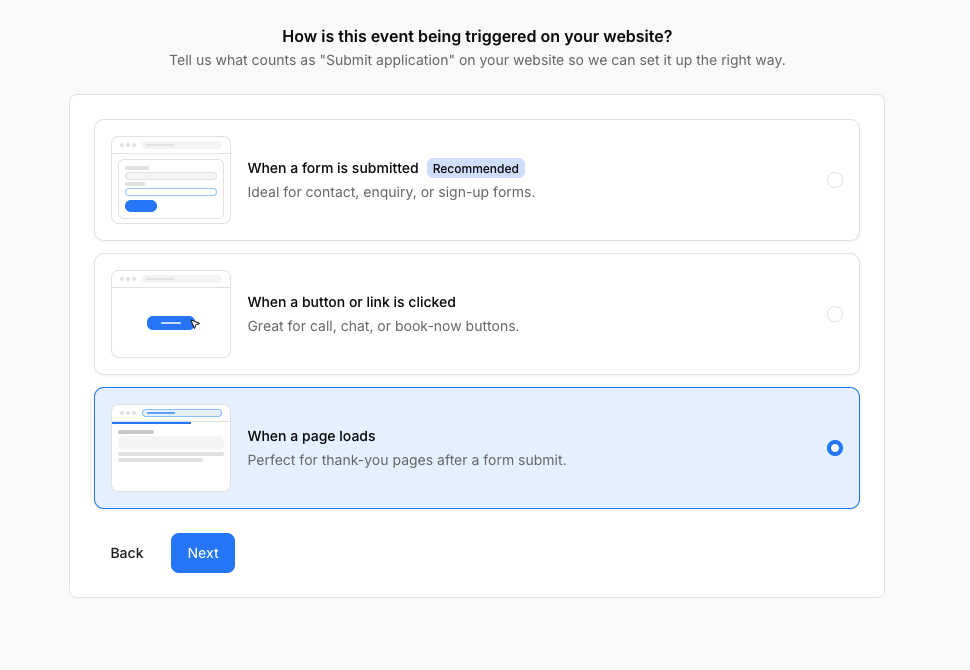
Choose When a page loads
On Which page should trigger this event? you can enter the page under that should trigger the event.
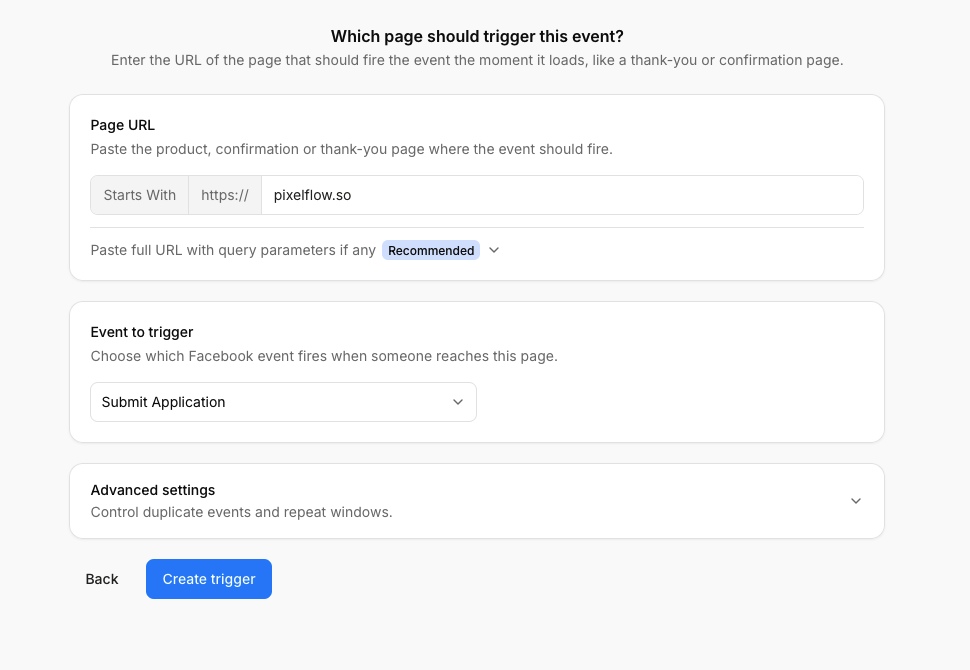
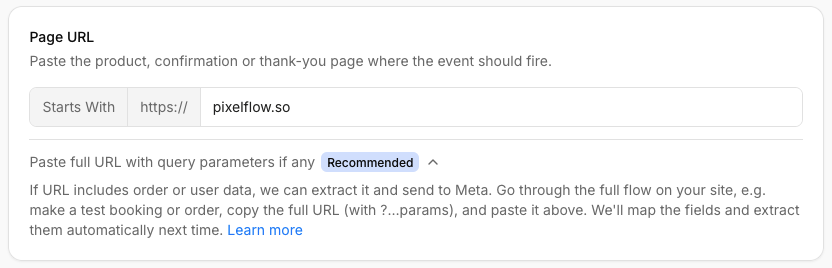
Important: If you use Calendly, Tidycal, Cal.com etc. or similar platforms that redirect a user back to your website after booking and they automatically include customer details in the URL, we can automatically extract this from the URL each time.
Just go through a full booking on your website, grab the URL of your booking including all of the extra parameters and paste the URL into PixelFlow. If we detect these, we'll ask you to map them on the next page and we'll auto extract them each time.
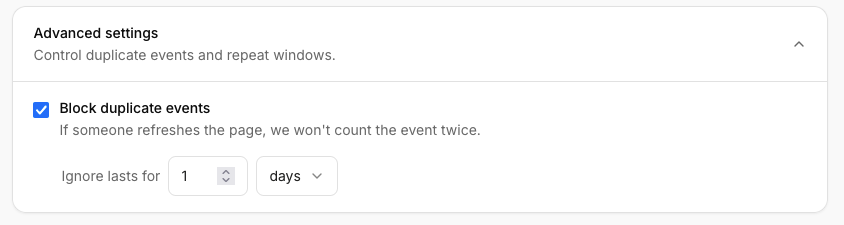
Optional: In Advanced settings you can control duplicate blocking
On success, PixelFlow shows Setup complete with a summary of the event and URL.
Page URL matching
Page-load triggers match with Starts With only. PixelFlow fires the event on every page that begins with the URL you entered.
The URL field shows a fixed
https://prefix and a path likeyour-website.com/page.The control tooltip states that the event triggers on all pages that begin with this URL.
Example:
mywebsite.com/productalso matchesmywebsite.com/product/item-1.
When you save, PixelFlow stores the cleaned page URL (protocol added if needed, query string removed from the match URL, trailing slash stripped) and keeps query parameters separately for mapping.
Block duplicate events
Block duplicate events is on by default so a refresh does not count the same conversion twice.
On the page-load step, open Advanced settings.
Keep Block duplicate events checked, or turn it off if you want every visit to count.
Set Ignore lasts for to the window you want. Units are seconds, minutes, hours, or days. The default is 1 day.
With blocking on, PixelFlow will not send the same event again from the same person if they reload the page within that window. This uses the same same-URL blocking logic as Event Blocking Rules. If the trigger saves but blocking cannot be saved, PixelFlow still creates the trigger and you can adjust blocking under Blocking Rules.
After setup
The success screen confirms tracking and can list metadata sent with the event. Event match quality scores can take up to 3 days to improve after you start sending richer data.
To capture values from the page itself (not the URL), see Extract Data from a Page When Using URL Triggers.
To confirm events are firing, use the Realtime Event Monitor.
To compare page-load triggers with Visual Tagger, integrations, CSS classes, and the API, see How to Track & Trigger Events.