
Event Logs
PixelFlow event logs show each event PixelFlow captured and what was sent to Meta. Use them to verify your setup, inspect one event in detail, and understand where attribution data came from.
Use event logs when you want to confirm an event fired, check which parameters were included, review campaign attribution, or troubleshoot duplicates and missing data.
Open an event and review the details
From your dashboard, open the event logs for a site and select View Event on any row. This opens the Event Details modal for that event.
The modal is split into three views:
Payload, with Basic and Advanced tabs
Traffic Source
Error Details, when an event has a delivery or validation issue
If you are testing a new setup, start with Verify Setup with Realtime Event Monitor and then use the event logs to inspect the final event record.
What the Basic payload shows
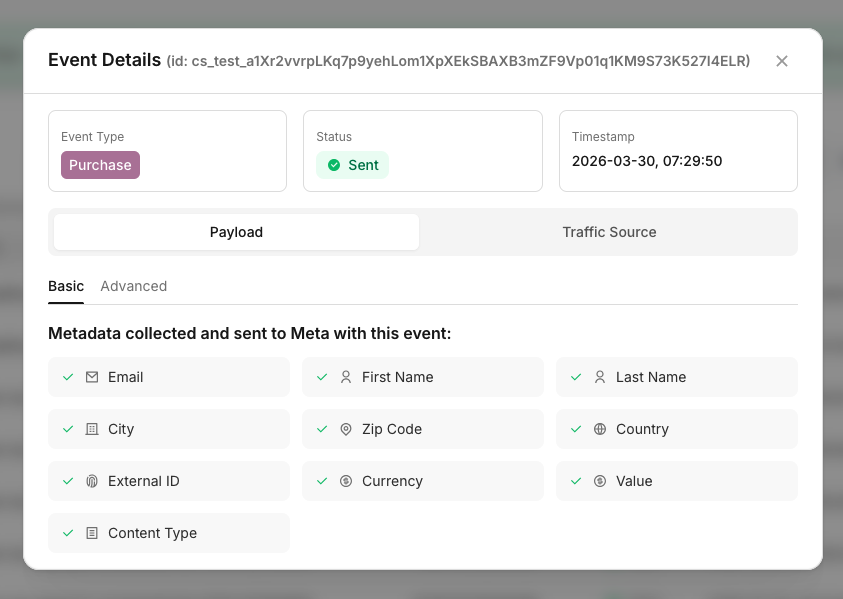
The Basic tab gives you a quick read of the event without opening the full payload. This is the fastest way to confirm the event name, core event data, and whether the record looks correct at a glance.
Use this tab when you need to answer simple questions fast, like whether a Lead event fired, whether the right URL triggered it, or whether expected fields were captured before you dig deeper.
What the Advanced payload shows
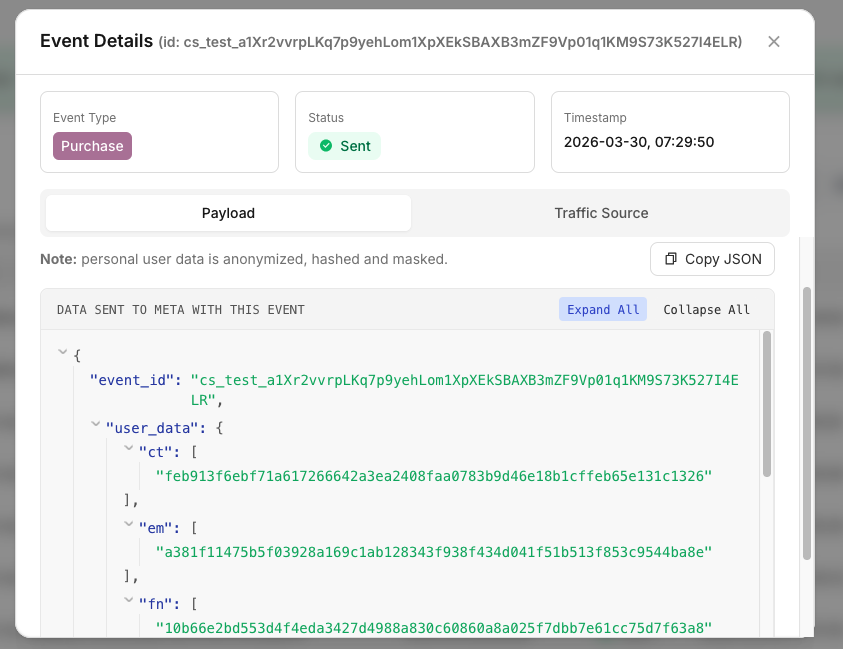
The Advanced tab shows the full data sent to Meta for that event. In the dashboard, this view is labeled Data sent to Meta with this event.
Use this tab when you need to inspect the exact payload, review event-specific parameters, or compare what PixelFlow captured against what Meta received. This is the best place to debug custom values like value, currency, order_id, and other event-specific fields covered in Event Specific Parameters.
Personal user data in the advanced payload is anonymized, hashed, and masked in the dashboard.
What the Traffic Source view shows
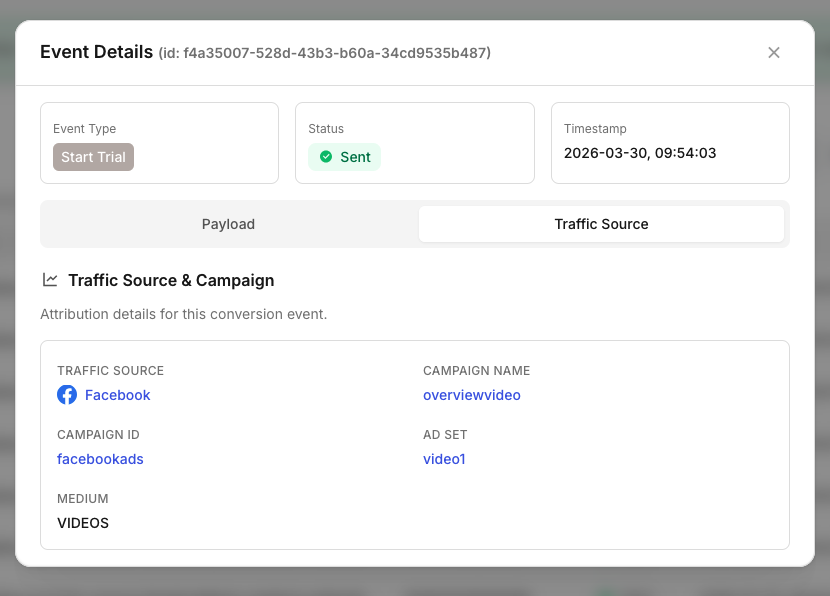
The Traffic Source view explains where the visit came from and which campaign details were attached to the event. This helps you understand attribution context without leaving PixelFlow.
Depending on the event, you may see fields such as Traffic Source, Campaign Name, Campaign ID, Ad Set, Ad Name, and Medium.
If PixelFlow does not find campaign parameters, it can label the source as Organic. That makes this view useful for separating paid traffic from untagged or non-campaign visits.
If Meta is not attributing events the way you expect, compare the traffic source details here with your UTM setup and then review your attribution troubleshooting steps.
How to use event logs for troubleshooting
Event logs are most useful when something looks wrong.
Open the event in Basic to confirm the event itself is correct.
Switch to Advanced to inspect the full payload sent to Meta.
Check Traffic Source to confirm campaign context and traffic classification.
If you see the same event more than once, review Why are Some of my Events Duplicated?. If the payload is missing key commerce or lead fields, review Event Specific Parameters.
In most cases, event logs give you the full chain: what fired, what was sent, and how PixelFlow understood the traffic source behind it.