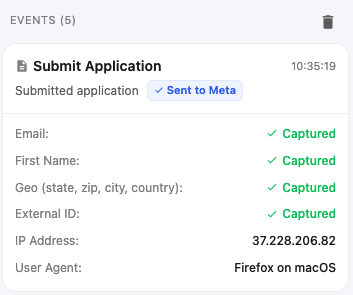
Verify Setup with Realtime Event Monitor
You can also verify your setup by simply checking your Event Logs to see events that have been triggered on your website. The Realtime Event Monitor lets you see events as you trigger them
What is the Realtime Event Monitor
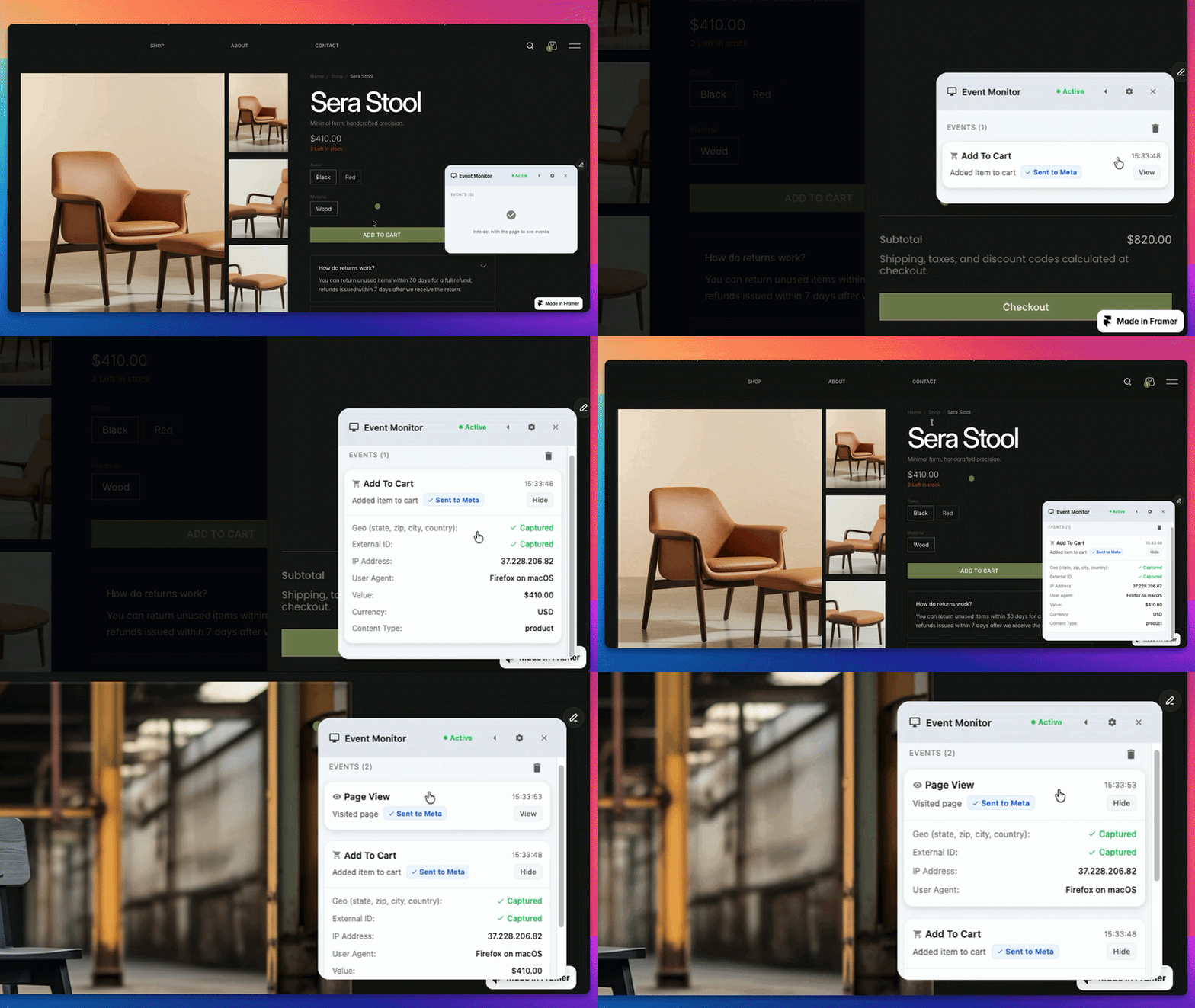
The Realtime Event Monitor is a small widget that opens on your website and lets you trigger any event and see what was tracked, in realtime.
For example, if you've setup Lead events to be triggered on your form, open the Event Monitor, fill in your form and verify what event was submitted and what information was collected along with the event.
How to Load the Event Monitor on Your Website
There are two ways to load the Event Monitor on your website:

Cick on the "Test Setup" button in your PixelFlow dashboard
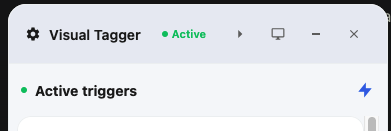
Click on the small "computer" icon in your Visual Tagger widget if you have it opened.
How to Use the Event Monitor
Note: Events triggered in the Event Monitor are also sent to Meta unless you activate your Test pixel mode
Once you've setup tracking on your website using the Visual Tagger you can manually trigger an event to verify your setup is working correctly.
Events that are triggered will show in the events list
Click into an event to see all of the information that has been collected and sent along with the event
Click the bin icon to clear the events list and start testing again