
Extract Data from a Page When Using URL Triggers
If you are triggering events on your website using a URL trigger, you can also tag information on that page and send it along with the event.
Here are some examples of situations where you might do this:
Order confirmation page - A user is redirected to a
/thank-youpage on your website and you have the order information on that page. You could trigger apurchaseevent on the page load and collect the user information from the order confirmation section to also send the user's name, email, phone, product, price, quantity along with the event.Form success page - A user is redirected to a
/thanks-for-your-email pageon your website after the send a contact form. If you show a copy of their email on the success page, you could trigger an event from the page and collect their name, email, phone etc. to send along with thecontacteventViewContent events - Trigger a ViewContent event on all pages that start with yourwebsite.com/shop (ie. trigger all product pages) and send the product name and value along with the ViewContent event
How to Extract Data from Elements / Information on a Page
To extract data from a page and send it along with the event, you need to "tag" it so PixelFlow knows to collect it. There are two methods to do this:
Use the Visual Tagger - open the Visual Tagger on your website, select "When a Page Loads" and tag any additional information on the page to track that anytime a page is loaded
Option 1: Using the Visual Tagger
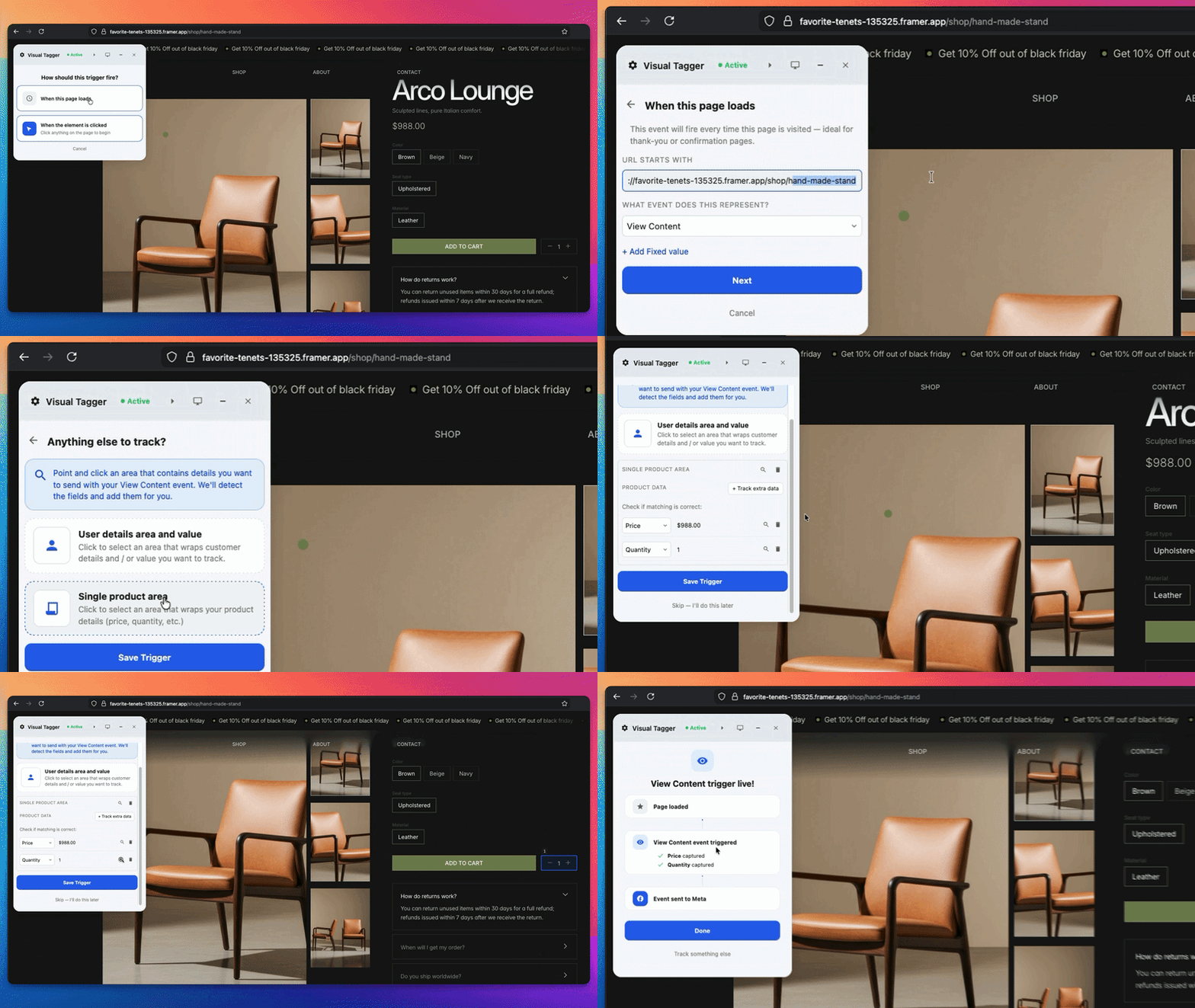
From the dashboard, click Track more events, choose your event, then open Point & Click on your site. For a URL-only trigger without tagging page content, choose When a page loads instead—see How to Trigger Events When a Page is Loaded
In the Visual Tagger select Tracking Something New and elect "When a Page Loads"
If you want to track all pages that start with that URL (eg. all pages that start with /shop to track all product pages) edit the "URL Starts With" and enter what the URL should start with
Choose the event that should trigger and press Next
Choose what type of information you'll track:
Select "User Details Area & Value" to track a section that will contain a customer name, email, phone number on the page
Select "Single Product Area” to track a section that will contain a product ID, product name, price, quantity or total price on the page
Press Save Trigger
Test Your Setup Using the Event Monitor
To validate your setup after you're finished, launch the Realtime Event Monitor to trigger an event and see what information was captured by PixelFlow
Learn more about Event MonitorOption 2: Using CSS Classes
Read How to Track & Trigger Events Using CSS Classes for more information.