
Pixelflow
Advanced Features

Extract Data from URLs When Using URL Triggers

Use this when your confirmation or success page includes useful data in the URL, such as an email address, full name, or booking details. PixelFlow can extract those URL parameters and send them with the event to Meta.

How URL parameter extraction works

If your URL contains additional information, PixelFlow can detect it and map it when you create or edit a URL Trigger.

For example, a booking confirmation URL can look like this:

yourwebsite.com/[email protected]&invitee_name=John+Doe&event_type=Discovery+Call

If you fire a Lead event from yourwebsite.com/booking-confirmed, PixelFlow can extract values such as:

  • Email

  • Full name

  • Event name

This gives Meta more data with each event, which can improve event match quality.

This works with both static URLs and dynamic URLs. Dynamic URLs are common when booking or signup tools append query parameters to the end of your redirect URL.

Set up extraction in PixelFlow

  1. Create or edit your URL Trigger in PixelFlow.

  2. In the URL section, enter an example URL that contains every parameter you want to extract.

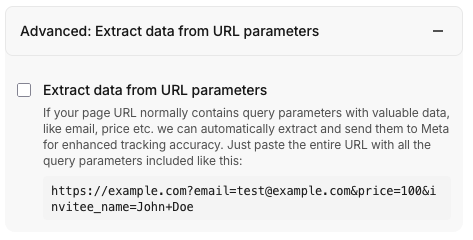
  3. Turn on Extract Data from URL parameters and click Add URL.

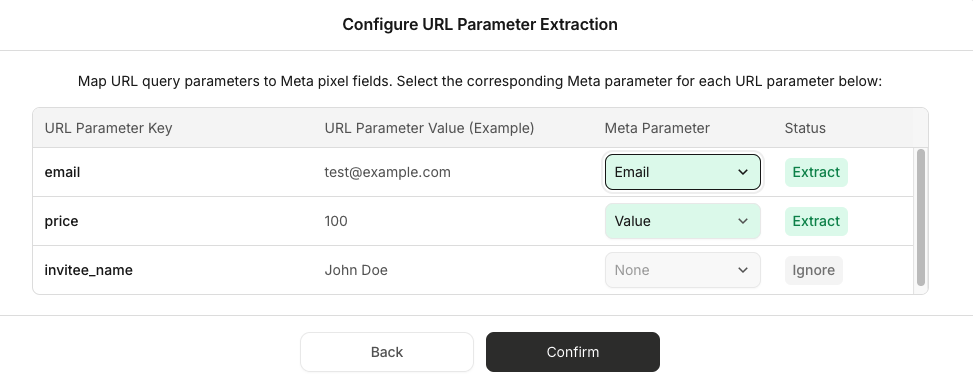
  4. Review the detected parameters and confirm the mapping.

  5. Click Confirm.

PixelFlow will then extract those values whenever a visitor lands on a matching URL, even if the parameter values change each time.

Example URL field in the URL Trigger setup
Extract Data from URL parameters option in PixelFlow
Parameter mapping confirmation screen in PixelFlow

Platform examples

Calendly

Calendly can redirect someone to a page on your own domain after they book.

Set up the redirect URL in Calendly

  1. In your event type, edit the booking

  2. Click More Options

  3. In the confirmation page settings choose Redirect to an external site

  4. Turn on Pass event details to your redirected page so Calendly appends booking details to the end of your redirect URL.

Those details can include values such as the event name, invitee name, invitee email address, and UTM tags.

You can use that full redirected URL as the example URL in PixelFlow and map the parameters you want to send with the event.

Calendly requires a paid plan for redirect-based confirmation pages and for PixelFlow's webhook-based Calendly integration. If you want direct webhook tracking instead of URL Trigger tracking, see Trigger Events from Calendly Bookings.

Cal.com

Cal.com can redirect people to a page on your own domain after they book, with booking details appended as query parameters.

Set up the redirect URL in Cal.com

  1. In your Cal.com dashboard, go to your event type settings.

  2. Open Advanced settings.

  3. Turn on Redirect to a custom URL after a successful booking.

  4. Enter your confirmation page URL (e.g., https://yoursite.com/booking-confirmed).

  5. Make sure Forward parameters is enabled (this is on by default). This appends booking data to your redirect URL.

Available parameters

Cal.com includes these parameters in the redirect URL:

  • uid — unique booking identifier

  • title — event type title

  • startTime / endTime — UTC ISO 8601 timestamps

  • email — primary attendee email

  • attendeeName — full attendee name

  • attendeeFirstName / attendeeLastName — first and last name separately

  • phone — phone number from the booking form

  • guestEmails — comma-separated guest emails

Example redirect URL:

https://yoursite.com/booking-confirmed?uid=abc123&title=30min%20Meeting&startTime=2024-01-15T14%3A00%3A00.000Z&email=john%40example.com&attendeeName=John%20Doe&attendeeFirstName=John&attendeeLastName=Doe&phone=%2B15551234567

Map Cal.com parameters to Meta fields

When you set up your URL Trigger in PixelFlow:

  1. Enter the full redirected URL as the example URL.

  2. Turn on Extract data from URL parameters.

  3. Review the detected parameters.

  4. Map them to Meta fields:

    • email → Email

    • attendeeName → Full name

    • attendeeFirstName → First name

    • attendeeLastName → Last name

    • phone → Phone

Some parameters are conditional and will not appear in every redirect. For example, phone and attendeeLastName only appear if the booking form collected that information.

Outseta

Outseta lets you send new signups to a custom page after signup.

Set up the redirect URL in Outseta

  1. In Outseta, go to AUTH > SIGN UP AND LOGIN

  2. Under Sign Up Settings enter your destination in Post Sign Up URL and click SAVE.

If your post-signup URL includes customer data like name, email etc., PixelFlow can extract those values when the visitor lands on that page.

Outseta documents the available parameters here and how to set them up: Using parameters in the post-signup URL.

Tally

Tally forms can pass submitted data through a redirect URL using a calculated field. When someone submits your form, they'll land on your thank-you page with name, email, phone, or other values appended as query parameters.

Set up the redirect URL in Tally

  1. Build your form with input blocks for the data you want to pass. Add blocks for Name, Email, and Phone. Note the exact labels you give them.

  2. Add a calculated field at the bottom of your form. Type /calculated to insert it, then name it something like redirect_url.

  3. Build the URL formula by concatenating a base string with references to each answer block. For example:

    "https://yoursite.com/thank-you?name=" + @name + "&email=" + @email + "&phone=" + @phone

    Replace @name, @email, and @phone with the actual references to your form blocks. Tally will autocomplete these when you type @.

  4. Set the redirect. Go to Settings → After submission → Redirect to URL and set the destination to @redirect_url (referencing your calculated field).

When someone submits the form, they'll be redirected to your thank-you page with the values appended. Use that full redirected URL as the example URL in PixelFlow and map the parameters you want to send with your event.

A note on calculated fields: Tally's calculated fields are designed primarily for numeric operations. String concatenation with text answers works but can be inconsistent, especially with special characters. If a user's name has a space or their email has a + in it, the values won't be URL-encoded automatically. This can break the redirect or mangle the query string on the receiving end. Test your form with various inputs to catch edge cases.

Was this helpful?