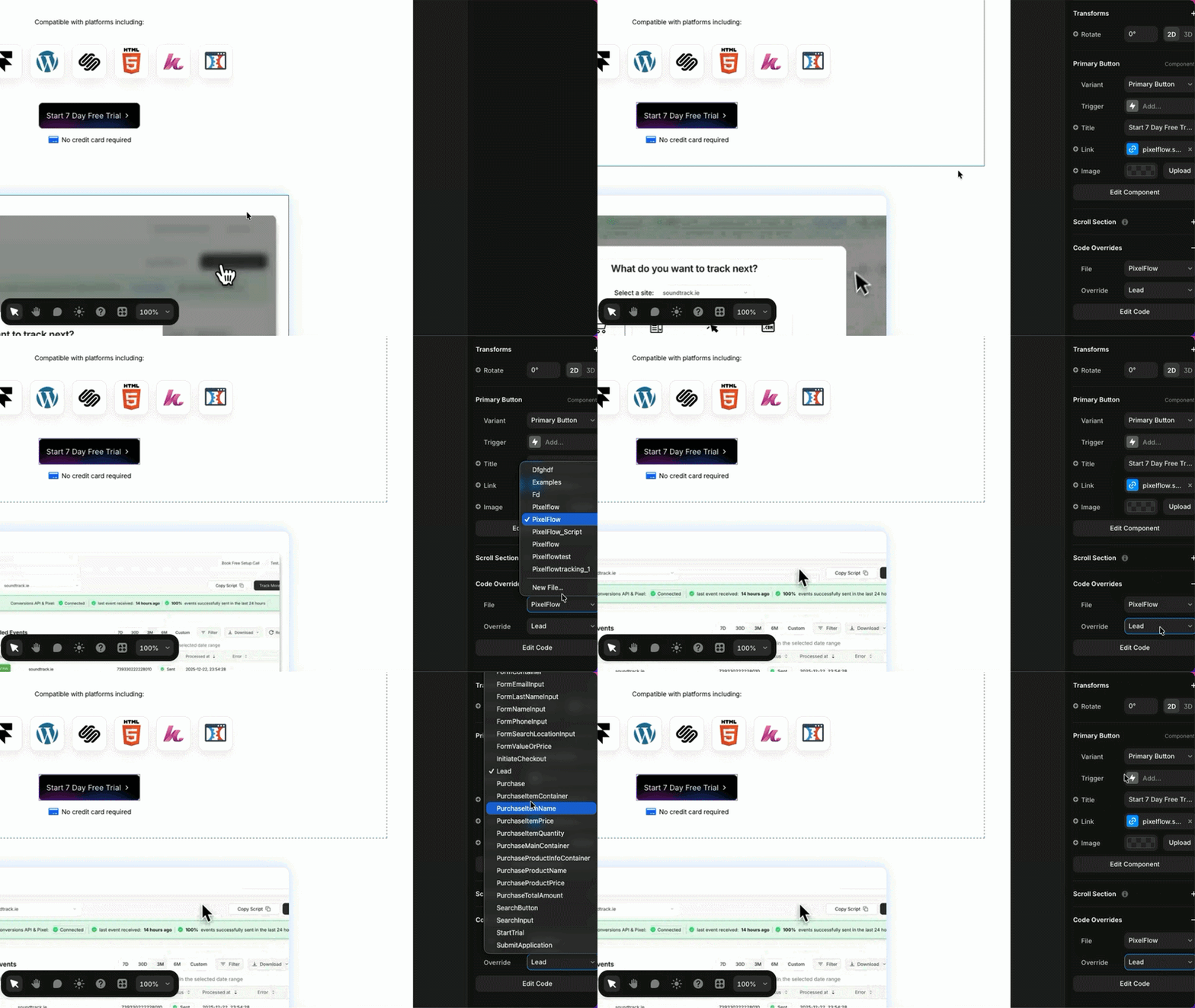
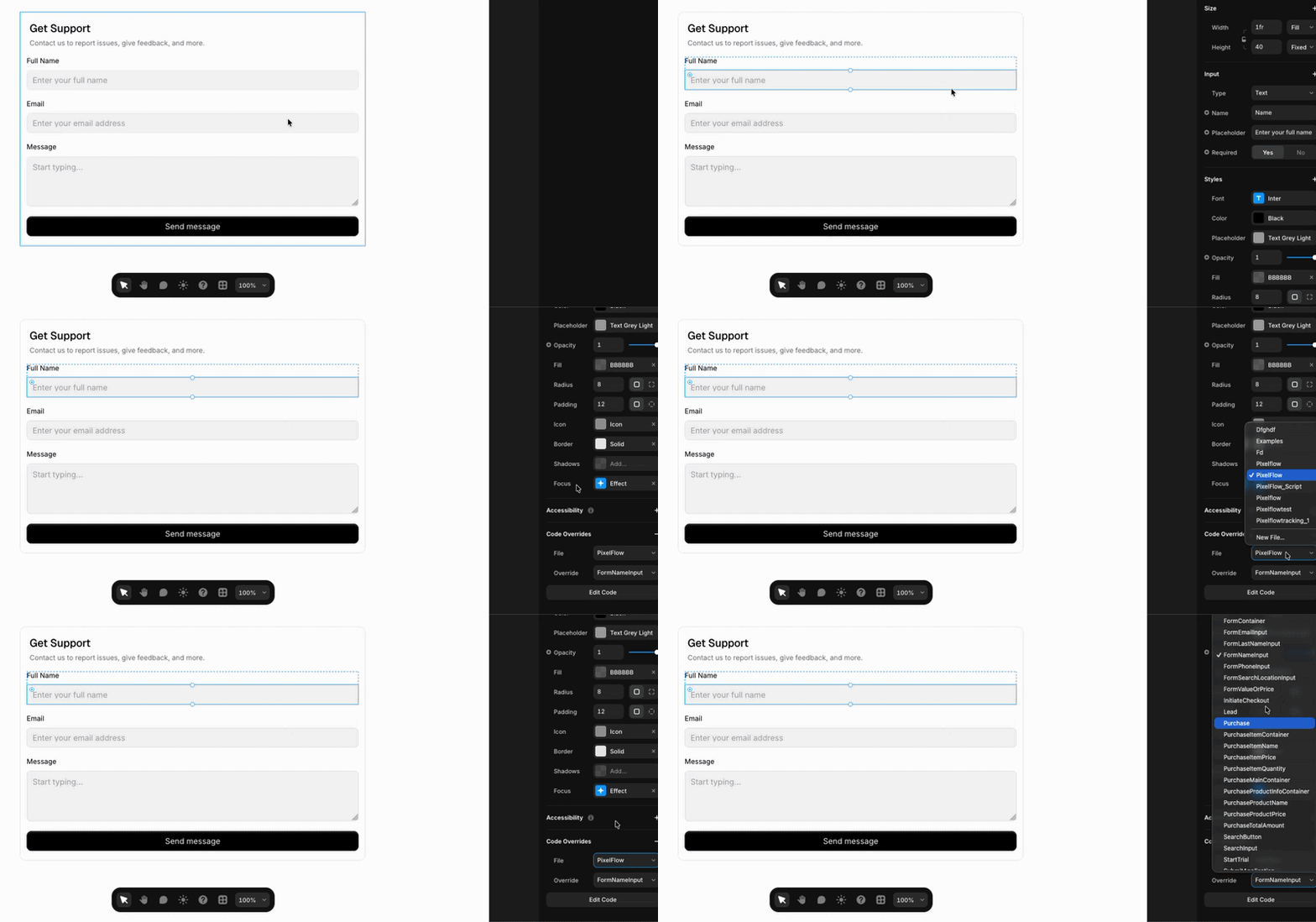
You only need to create this file once. After it's created, you can reuse it for all elements you want to track on your Framer site.
Before you can use classes based tracking on Framer, you need to follow these steps one time first.
In Framer Designer, click on any element you want to track
On the right panel, scroll down to Code Overrides section and expand it
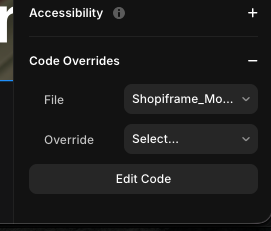
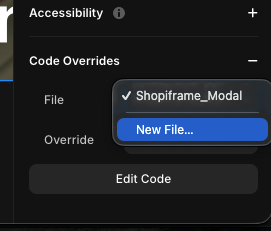
In the file field, click the dropdown, select New file, name your override (e.g., PixelFlowClasses), and click Create
Delete the content it creates and replace it with the following code (IMPORTANT - press the copy button or expand it and select it all)
import type { ComponentType } from 'react';
export function AddPaymentInfo(Component): ComponentType {
	return (props) => {
		props.className
			? (props.className += ' action-btn-pymt-001-pf')
			: (props.className = 'action-btn-pymt-001-pf');
		return <Component {...props} />;
	};
}

export function Subscribe(Component): ComponentType {
	return (props) => {
		props.className
			? (props.className += ' action-btn-sub-002-pf')
			: (props.className = 'action-btn-sub-002-pf');
		return <Component {...props} />;
	};
}

export function Contact(Component): ComponentType {
	return (props) => {
		props.className
			? (props.className += ' action-btn-cntct-003-pf')
			: (props.className = 'action-btn-cntct-003-pf');
		return <Component {...props} />;
	};
}

export function InitiateCheckout(Component): ComponentType {
	return (props) => {
		props.className
			? (props.className += ' action-btn-buy-004-pf')
			: (props.className = 'action-btn-buy-004-pf');
		return <Component {...props} />;
	};
}

export function AddToCart(Component): ComponentType {
	return (props) => {
		props.className
			? (props.className += ' action-btn-cart-005-pf')
			: (props.className = 'action-btn-cart-005-pf');
		return <Component {...props} />;
	};
}

export function AddToWishlist(Component): ComponentType {
	return (props) => {
		props.className
			? (props.className += ' action-btn-wl-006-pf')
			: (props.className = 'action-btn-wl-006-pf');
		return <Component {...props} />;
	};
}

export function CompleteRegistration(Component): ComponentType {
	return (props) => {
		props.className
			? (props.className += ' action-btn-reg-007-pf')
			: (props.className = 'action-btn-reg-007-pf');
		return <Component {...props} />;
	};
}

export function CustomizeProduct(Component): ComponentType {
	return (props) => {
		props.className
			? (props.className += ' action-btn-cstm-008-pf')
			: (props.className = 'action-btn-cstm-008-pf');
		return <Component {...props} />;
	};
}

export function Donate(Component): ComponentType {
	return (props) => {
		props.className
			? (props.className += ' action-btn-don-009-pf')
			: (props.className = 'action-btn-don-009-pf');
		return <Component {...props} />;
	};
}

export function Lead(Component): ComponentType {
	return (props) => {
		props.className
			? (props.className += ' action-btn-lead-011-pf')
			: (props.className = 'action-btn-lead-011-pf');
		return <Component {...props} />;
	};
}

export function StartTrial(Component): ComponentType {
	return (props) => {
		props.className
			? (props.className += ' action-btn-trial-012-pf')
			: (props.className = 'action-btn-trial-012-pf');
		return <Component {...props} />;
	};
}

export function SubmitApplication(Component): ComponentType {
	return (props) => {
		props.className
			? (props.className += ' action-btn-submit-013-pf')
			: (props.className = 'action-btn-submit-013-pf');
		return <Component {...props} />;
	};
}

export function SearchInput(Component): ComponentType {
	return (props) => {
		props.className
			? (props.className += ' action-inpt-srch-014-pf')
			: (props.className = 'action-inpt-srch-014-pf');
		return <Component {...props} />;
	};
}

export function SearchButton(Component): ComponentType {
	return (props) => {
		props.className
			? (props.className += ' action-btn-srch-015-pf')
			: (props.className = 'action-btn-srch-015-pf');
		return <Component {...props} />;
	};
}

export function FindLocationInput(Component): ComponentType {
	return (props) => {
		props.className
			? (props.className += ' action-inpt-loc-016-pf')
			: (props.className = 'action-inpt-loc-016-pf');
		return <Component {...props} />;
	};
}

export function FindLocationButton(Component): ComponentType {
	return (props) => {
		props.className
			? (props.className += ' action-btn-loc-017-pf')
			: (props.className = 'action-btn-loc-017-pf');
		return <Component {...props} />;
	};
}

export function Purchase(Component): ComponentType {
	return (props) => {
		props.className
			? (props.className += ' action-btn-plc-ord-018-pf')
			: (props.className = 'action-btn-plc-ord-018-pf');
		return <Component {...props} />;
	};
}

export function ViewContent(Component): ComponentType {
	return (props) => {
		props.className
			? (props.className += ' action-btn-vc-019-pf')
			: (props.className = 'action-btn-vc-019-pf');
		return <Component {...props} />;
	};
}

export function ProductsListContainer(Component): ComponentType {
	return (props) => {
		props.className
			? (props.className += ' info-chk-itm-ctnr-pf')
			: (props.className = 'info-chk-itm-ctnr-pf');
		return <Component {...props} />;
	};
}

export function ProductsListTotalPrice(Component): ComponentType {
	return (props) => {
		props.className
			? (props.className += ' info-totl-amt-pf')
			: (props.className = 'info-totl-amt-pf');
		return <Component {...props} />;
	};
}

export function ProductContainer(Component): ComponentType {
	return (props) => {
		props.className
			? (props.className += ' info-chk-itm-pf')
			: (props.className = 'info-chk-itm-pf');
		return <Component {...props} />;
	};
}

export function ProductId(Component): ComponentType {
	return (props) => {
		props.className
			? (props.className += ' info-itm-id-pf')
			: (props.className = 'info-itm-id-pf');
		return <Component {...props} />;
	};
}

export function ProductPrice(Component): ComponentType {
	return (props) => {
		props.className
			? (props.className += ' info-itm-prc-pf')
			: (props.className = 'info-itm-prc-pf');
		return <Component {...props} />;
	};
}

export function ProductQuantity(Component): ComponentType {
	return (props) => {
		props.className
			? (props.className += ' info-itm-qnty-pf')
			: (props.className = 'info-itm-qnty-pf');
		return <Component {...props} />;
	};
}

export function FormContainer(Component): ComponentType {
	return (props) => {
		props.className
			? (props.className += ' info-frm-cntr-pf')
			: (props.className = 'info-frm-cntr-pf');
		return <Component {...props} />;
	};
}

export function FormValueOrPrice(Component): ComponentType {
	return (props) => {
		props.className
			? (props.className += ' info-val-pf')
			: (props.className = 'info-val-pf');
		return <Component {...props} />;
	};
}

export function FormFullNameInput(Component): ComponentType {
	return (props) => {
		props.className
			? (props.className += ' info-cust-full-name-pf')
			: (props.className = 'info-cust-full-name-pf');
		return <Component {...props} />;
	};
}

export function FormFirstNameInput(Component): ComponentType {
	return (props) => {
		props.className
			? (props.className += ' info-cust-fn-pf')
			: (props.className = 'info-cust-fn-pf');
		return <Component {...props} />;
	};
}

export function FormLastNameInput(Component): ComponentType {
	return (props) => {
		props.className
			? (props.className += ' info-cust-ln-pf')
			: (props.className = 'info-cust-ln-pf');
		return <Component {...props} />;
	};
}

export function FormEmailInput(Component): ComponentType {
	return (props) => {
		props.className
			? (props.className += ' info-cust-em-pf')
			: (props.className = 'info-cust-em-pf');
		return <Component {...props} />;
	};
}

export function FormPhoneInput(Component): ComponentType {
	return (props) => {
		props.className
			? (props.className += ' info-cust-ph-pf')
			: (props.className = 'info-cust-ph-pf');
		return <Component {...props} />;
	};
}

export function FormSearchLocationInput(Component): ComponentType {
	return (props) => {
		props.className
			? (props.className += ' info-srch-ctnr-pf')
			: (props.className = 'info-srch-ctnr-pf');
		return <Component {...props} />;
	};
}