
Event Classes on Webflow
Recommended: Visual Tagger
We recommend using the Visual Tagger as a simpler option to setup tracking - it has the same tracking functionality in a simple widget
Click here to learn more about the visual taggerThis guide explains how to tag elements on your Webflow website with a "class" that lets PixelFlow track that particular element, section or data to trigger or send along with an event to Meta.
Click here to view all the ways to track and trigger events on your website.
If you're using Webflow eCommerce, PixelFlow can automatically extract transaction data from your checkout and order confirmation pages. See the Auto track Webflow eCommerce events guide for details on enabling automatic data extraction.
How to Use Event Classes on Webflow
Add the class from the Classes Document to that particular element in Webflow. The method depends on which page builder or editor you're using:
Using the Webflow Designer
The Webflow Designer makes it easy to add custom classes to any element:
Select the element (button, form, or any element) you want to track
In the right sidebar, locate the Style panel
At the top of the Style panel, click into the Selector field (where you add class names)
Type the PixelFlow class name (for example,
action-btn-sub-002-pffor a Subscribe event) and press EnterClick Publish in the top-right corner to save your changes
You can add multiple classes by typing each class name and pressing Enter after each one. For example, to track a Subscribe event and add form data extraction, you would add: action-btn-sub-002-pf then add info-frm-cntr-pf
Using Webflow's CMS
If you're using Webflow CMS elements:
Select the CMS element you want to track in the Webflow Designer
In the Style panel, click into the Selector field
Enter the PixelFlow class name from the Classes Document
Press Enter to apply the class
Click Publish to publish your changes
Make sure to publish your site after adding classes. Changes won't take effect until the site is live.
Tracking Webflow Buttons

If you want to trigger a "Lead" event every time someone clicks a specific button on your website:
Find the Lead class from the Classes Document:
action-btn-lead-011-pfSelect your button in the Webflow Designer
Add
action-btn-lead-011-pfto the Selector field in the Style panel (see above)Press Enter to apply the class
Publish your site
Once published, PixelFlow will automatically track Lead events whenever users click that button and send the data to Meta.
Tracking Form Submissions in Webflow
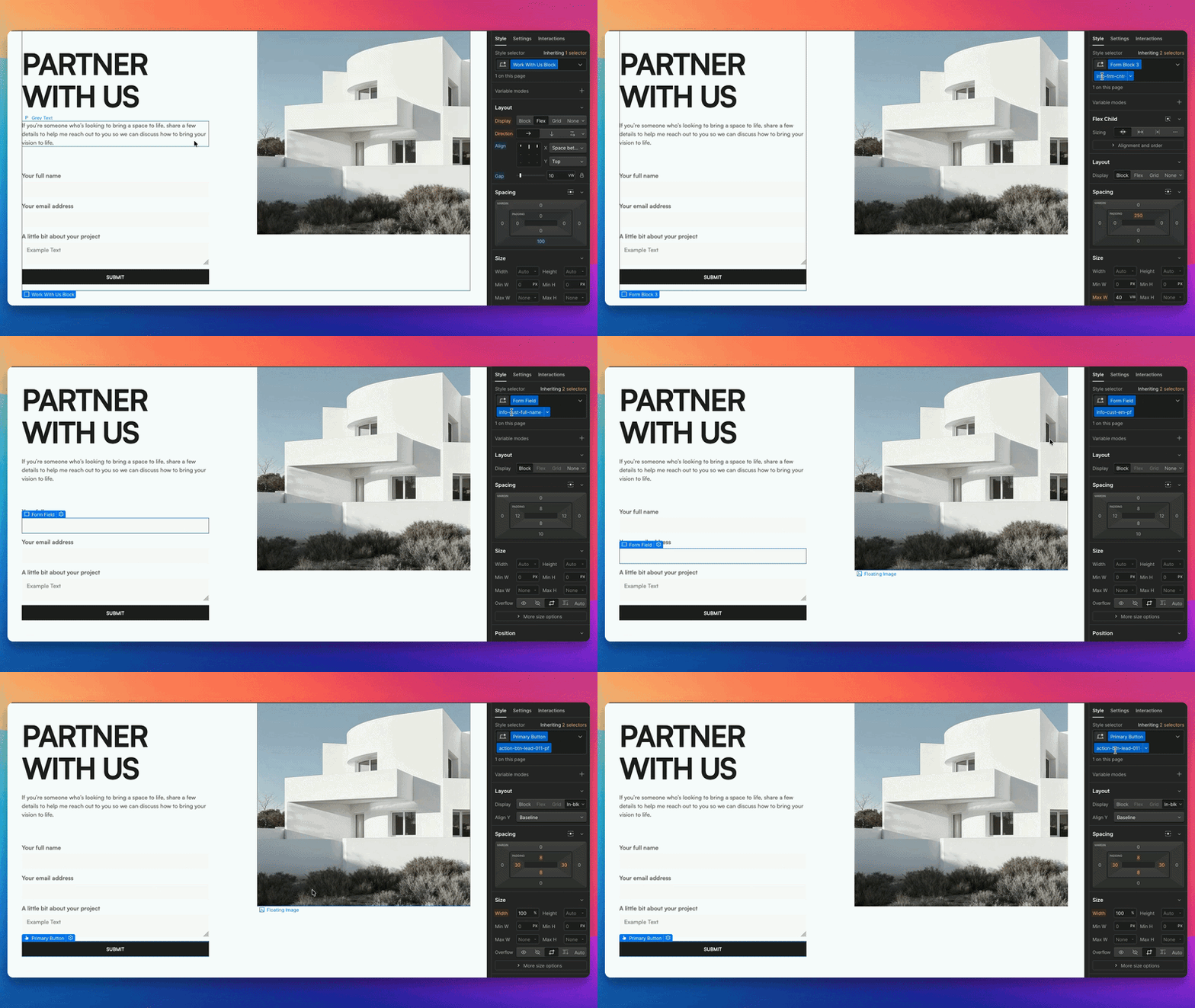
To track form submissions and capture user data (name, email, phone), you need to add classes to both the form container and individual input fields:
Add
info-frm-cntr-pfto your form container or form elementAdd the appropriate action class to your submit button (e.g.,
action-btn-lead-011-pffor a Lead event). See a full list of action classes hereAdd data extraction classes to your input fields:
info-cust-fn-pffor first name inputinfo-cust-em-pffor email inputinfo-cust-ph-pffor phone inputinfo-cust-ln-pffor last name input
For Webflow's native form elements, you can add classes directly to form blocks and input fields in the Designer. Check Webflow's documentation for how to add custom classes to form elements.
Tracking Webflow eCommerce Events
For Webflow eCommerce sites, PixelFlow offers automatic tracking for checkout and purchase events:
Automatic data extraction: Enable automatic extraction of product data (currency, value, product IDs) from your Webflow checkout pages. See Auto track Webflow eCommerce events for setup instructions.
Product catalog synchronization: Match your Webflow product IDs with Facebook Catalog Ads to enable Dynamic Product Ads. See How to Synchronize Webflow eCommerce Product IDs with Facebook Catalog Ads for detailed steps.
Verifying Your Setup
After adding classes to your elements:
Visit your page on the live website (not in preview mode)
Right-click the element and select Inspect or Inspect Element
In the developer tools, verify that the PixelFlow class appears in the HTML code for that element
Test the tracking by triggering the event (clicking the button, submitting the form, etc.)
Check your PixelFlow dashboard to confirm the event was captured
If you're using any caching or optimization tools, make sure to clear your cache after adding classes. Otherwise, visitors may see the old version of your page without the tracking classes.
Common Issues and Solutions
Classes Not Appearing on Live Site
Clear your browser cache and hard refresh the page (Cmd+Shift+R or Ctrl+Shift+R)
Make sure you clicked Publish after adding the class
Check that you added the class to the correct element
Verify you're viewing the live published site, not a preview or draft
Events Not Tracking in PixelFlow Dashboard
Verify the PixelFlow script is installed correctly (check the Webflow Setup guide)
Confirm you're using the exact class name from the Classes Document
Make sure the class is added to the clickable element (button, link) not a wrapper div
Check your browser console for JavaScript errors that might prevent tracking
Form Data Not Being Captured
Ensure
info-frm-cntr-pfis added to the form containerVerify input field classes are added to the actual
<input>elements, not labels or wrappersFor Webflow forms, make sure classes are applied to both the form block and individual input fields
What's Next
View the complete list of available classes in the Classes Document
Learn about tracking events via URLs as an alternative method
Set up automatic eCommerce tracking for Webflow stores
Configure product catalog synchronization for Dynamic Product Ads