
Teams and Members
Open Dashboard → Team to invite colleagues or contractors as viewers and manage their site access.
How it works
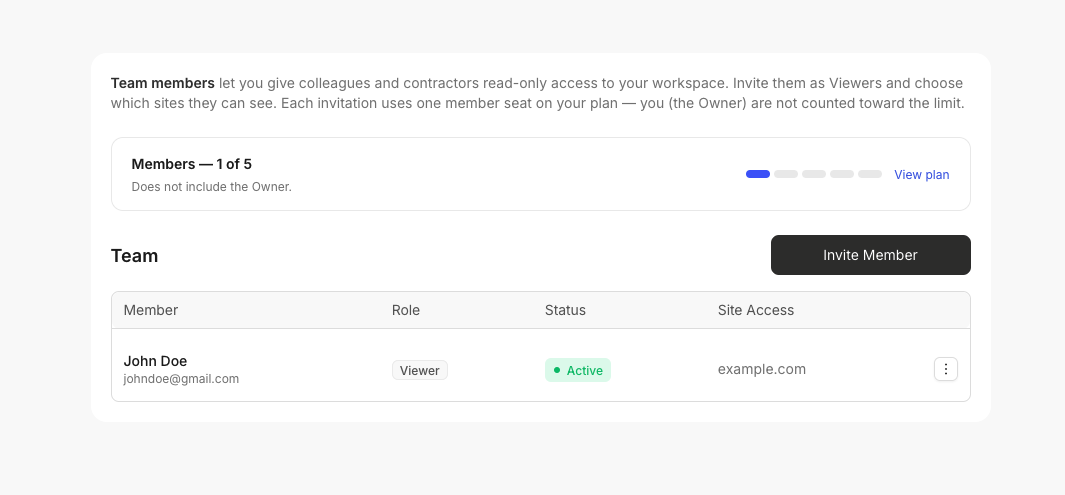
PixelFlow workspaces have two roles: Owner and Viewer. Owners have full control. Viewers get read-only access to the sites you assign them, and cannot manage billing, change plans, or invite other members.
Invite a team member
In the dashboard, click your account name in the top-right and choose Team.
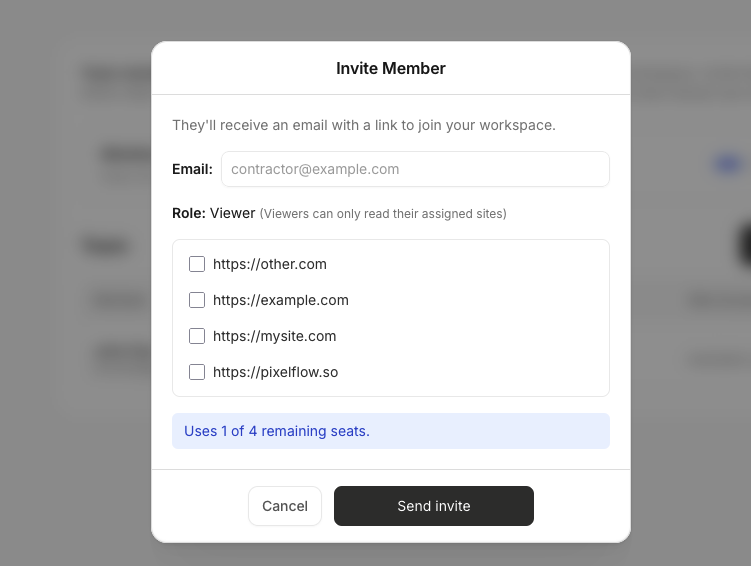
Click Invite Member.
Enter the person's email address.
Select which sites they can access. Viewers must be assigned at least one site.
Click Send invite.
The invitee receives an email with a link to join. Pending invitations count toward your seat usage until they are accepted, revoked, or expire. The owner is not counted toward the seat limit.
Manage invitations and members
The Team page shows active members and pending invitations, with columns for role, status, and site access.
Resend or revoke a pending invitation
Find the invitation in the pending list.
Click the row menu and choose Resend invite or Revoke invitation.
Revoking an invitation immediately releases the reserved seat.
Edit a member's site access
Find the active member in the list.
Click Edit next to their row.
Select or deselect sites, then save.
Removing all site access removes their ability to view that workspace data.
Remove a member
Click the row menu for the member and choose Remove member.
Confirm the removal.
This removes their access immediately and frees their seat.
What invitees experience
When someone accepts an invitation, they are switched into your workspace. If they are not logged in, the invite link redirects them to log in or register first, then completes acceptance automatically. After joining, they see only the sites you assigned.