
How to use Attribution analytics
Attribution analytics shows which sources, campaigns, ad sets, and ads drive your visitors, sessions, events, and eligible revenue.
Open Attribution from the dashboard sidebar (at /dashboard/attribution). You should
Add UTM parameters to your Meta ads
Add a small code snippet to improve the accuracy of your attribution reporting on this page
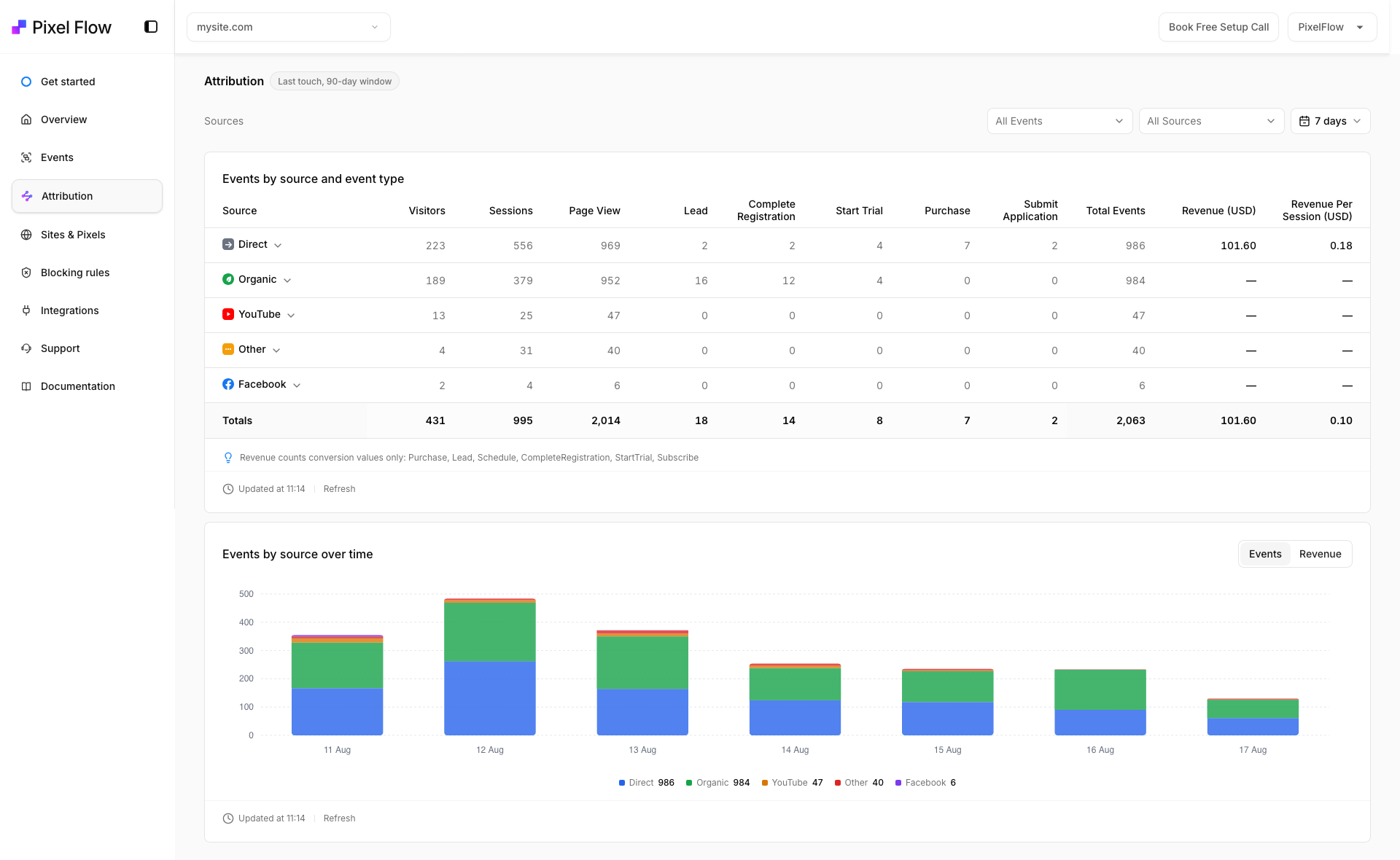
Open Attribution and choose your view
Open Attribution from the dashboard sidebar. Choose the site you want to analyze, then set the filters at the top of the page:
Event filter, default All Events — narrows results to one event type. The list of available events is loaded from your account.
Source filter, default All Sources — narrows results to one traffic source.
Date range — 7 days, 30 days, 90 days, or Custom.
Events or Revenue metric toggle, default Events — switches the over-time chart between event counts and revenue.
The page shows an over-time chart, conversion-rate cards, and a funnel table that lists rows for the current dimension with a Totals row.
Drill from source down to ad
The funnel table is organized into four levels: Source → Campaign → Ad set → Ad. Select a row at one level to drill into the next level down; Ad is the deepest level.
The mapping comes from your UTM values: utm_source becomes Source, utm_campaign becomes Campaign, utm_term becomes Ad set, and utm_content becomes Ad. utm_medium and utm_id are captured but are not separate drill-down levels. Traffic that lacks a value for a dimension appears in the (not set) bucket.
Each row shows Visitors, Sessions, a column for each returned event type, Total Events, Revenue, and Revenue Per Session (attributed revenue divided by sessions for that row). Visitors are distinct visitor IDs; sessions are distinct session IDs with a 30-minute inactivity window.
Understand the Revenue metric
Revenue counts conversion values only, for these event types: Purchase, Lead, Schedule, CompleteRegistration, StartTrial, and Subscribe. Events with a currency mismatch are excluded from revenue and flagged with a message noting that a conversion value was excluded.
Revenue coverage begins on July 12, 2026. Dates before that in your selected window appear but do not include conversion values.
If your events carry no values, see How to Assign a Value/Price to an Event.
Date range and plan limits
Attribution covers at most 90 days of data. Date presets or custom ranges beyond your plan's analytics lookback are locked and show an Upgrade plan action; a custom range that exceeds 90 days is rejected with a message telling you to choose a shorter range.
Attribution labels vs. Meta credit
A UTM campaign label in Attribution describes the traffic your URL captured — it is not Meta's decision about which campaign gets credit for a conversion. Meta applies its own attribution windows when it credits events in Ads Manager. If the two views disagree, see Why doesn't Facebook attribute events to a specific campaign? and How does PixelFlow know which ad to credit for an event?.
Inspect individual events
Attribution shows aggregate analytics. To inspect a single event's payload and traffic source, open the event logs and use the Traffic Source and Payload views.