
How to Track Calendars & Call Bookings
In this article, you'll learn how to track calendar bookings from tools like Calendly and TidyCal, understand when Event URL tracking works, and why external redirects can't be tracked with PixelFlow.
Call bookings are one of the most valuable conversion events to track for your Facebook ads. Whether you're generating leads, scheduling consultations, or booking discovery calls, properly tracking these events helps Meta optimize your campaigns to find more qualified prospects.
Understanding Calendar Booking Tracking Methods
There are two primary ways calendar platforms can handle bookings, and only one of them can be tracked accurately with PixelFlow:
Redirect to your own domain (e.g., yourwebsite.com/thank-you) - ✅ Can be tracked
Redirect to external platform (e.g., calendly.com/confirmation) - ❌ Cannot be tracked
Critical Limitation: PixelFlow can only track events that occur on your own domain. If your calendar platform redirects users to an external confirmation page (like calendly.com or tidycal.com), PixelFlow cannot fire an event because the PixelFlow script only runs on your website, not on third-party domains.
When Event URL Tracking Works for Calendar Bookings
Event URL tracking is appropriate for calendar bookings only when your booking platform redirects users to a dedicated page on your own domain after they complete their booking.
The Success Page Method
If your calendar booking workflow looks like this:
User views your calendar on yourwebsite.com/book-a-call
User selects a time and completes the booking
User is redirected to yourwebsite.com/booking-confirmed (your own domain)
In this scenario, you can use Event URL tracking because the confirmation page is on your domain where PixelFlow is installed.
When This Works: Event URL tracking is accurate for calendar bookings when the platform redirects to a unique success page on your own domain that users can only reach after completing a booking.
Important: If users bookmark the confirmation page, share the link, or refresh it, you'll track duplicate events. Consider using Event Blocking Rules to prevent duplicates from page refreshes and returning visitors.
Why External Platform Redirects Don't Work
Many calendar platforms redirect users to their own confirmation pages after booking:
Calendly redirects to calendly.com/confirmation_page
TidyCal may redirect to tidycal.com/success
Other booking tools use their own domains for confirmation
When a user lands on these external pages, the PixelFlow script is not present because it's only installed on your website. Without the script, no event can be fired to Meta.
Technical Explanation: PixelFlow works by adding a tracking script to your website's pages. This script can only execute on pages where it's installed (your domain). When users navigate to a different domain, your script doesn't run on that external site, making it impossible to track events that happen there.
Solution: Configure Custom Redirect URLs
Most calendar platforms offer the ability to redirect users to a custom URL after booking. This feature allows you to send users back to a page on your own domain, where PixelFlow can track the conversion.
Platform Requirements: Note that Calendly requires a paid subscription to enable custom redirect URLs. TidyCal offers this feature for a one-time fee of $29, making it a cost-effective alternative if you need custom redirect functionality.
Step-by-Step: Track Calendar Bookings via Event URLs
Prerequisites
A calendar booking platform (Calendly, TidyCal, or similar)
Ability to configure a custom redirect URL in your booking platform (may require paid plan)
PixelFlow installed on your website
Access to create a new page on your website for the confirmation
Step 1: Create a Confirmation Page on Your Domain
Create a new page on your website with a unique URL that users will only see after booking a call. Examples:
yourwebsite.com/booking-confirmed
yourwebsite.com/thank-you-for-booking
yourwebsite.com/call-scheduled
This page should:
Thank the user for booking
Provide next steps or what to expect
Include any relevant booking details or preparation instructions
Pro Tip: Make this URL unique and not easily guessable. Avoid generic URLs like /thank-you that might be used for other conversions. This ensures the event only fires for actual bookings.
Step 2: Embed Your Calendar on Your Website
When you set up your calendar in Calendly, TidyCal, or your booking platform, you'll receive an embed code. Add this code to the page on your website where you want visitors to book calls.
The embed code typically looks like this:
<!-- Calendar embed code example -->
<div class="calendly-inline-widget" data-url="https://calendly.com/your-link"></div>
<script src="https://assets.calendly.com/assets/external/widget.js"></script>
Place this code on your website page where you want the booking calendar to appear.
Step 3: Configure Custom Redirect URL in Your Calendar Platform
Now configure your booking platform to redirect users to your confirmation page after they complete a booking.
For TidyCal Users:
Log in to your TidyCal account
Navigate to your event settings
Find the "Redirect URL" or "Custom Confirmation URL" setting
Enter your confirmation page URL (e.g., yourwebsite.com/booking-confirmed)
Save your settings
Detailed instructions: How to redirect clients to a custom URL after booking (TidyCal)
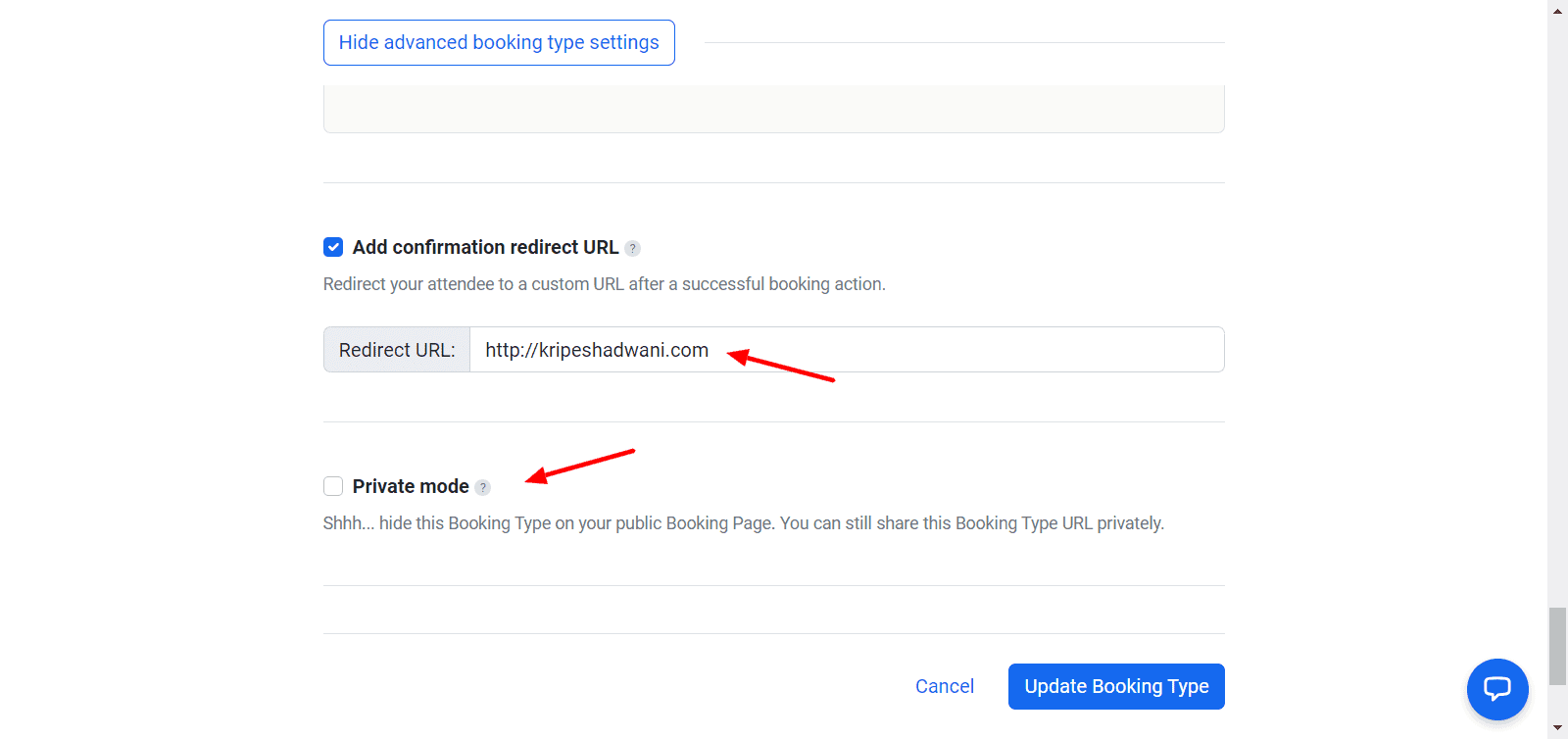
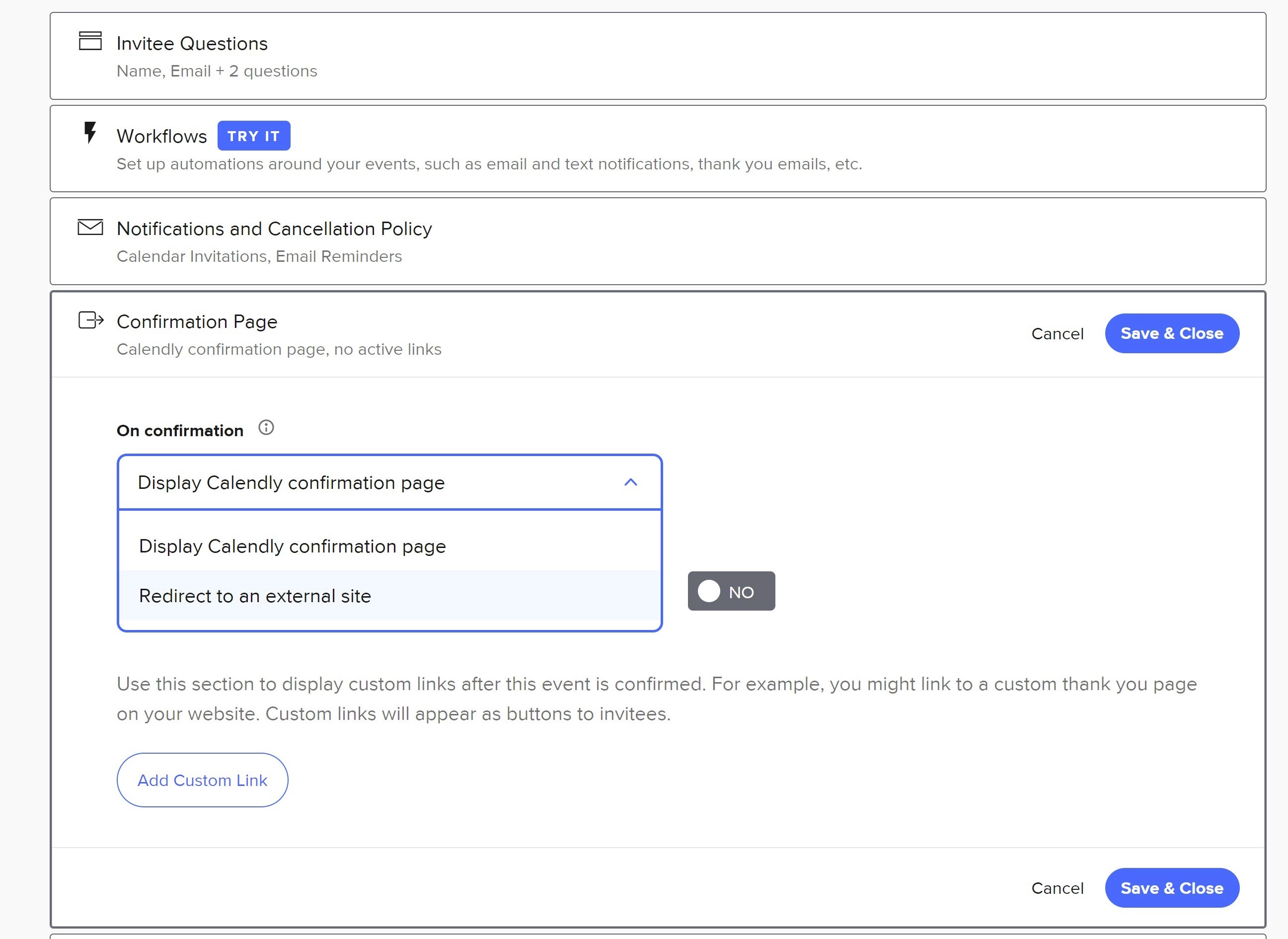
For Calendly Users:
Log in to your Calendly account (requires paid plan)
Go to your event type settings
Navigate to the "Confirmation Page" section
Select "Redirect to an external site"
Enter your confirmation page URL (e.g., yourwebsite.com/booking-confirmed)
Save your changes
Detailed instructions: How to Edit Redirect Links in Calendly Events
Step 4: Set Up Event URL in PixelFlow
Now configure PixelFlow to fire an event when users land on your confirmation page:
Log in to your PixelFlow dashboard
Navigate to Event URLs section
Click "Add Event URL"
Enter your confirmation page URL: yourwebsite.com/booking-confirmed
Select the event type you want to track (typically "Schedule" for calendar bookings)
Save your configuration
Now, whenever a user completes a booking and lands on yourwebsite.com/booking-confirmed, PixelFlow will automatically fire a "Schedule" event to Meta.
For platform-specific instructions on setting up Event URLs, see:
Or see the general guide: How to Track Events using Event URLs
Step 5: Prevent Duplicate Events with Blocking Rules
After someone books a call, they might return to your confirmation page later, refresh the page, or share the link. Each of these actions would trigger another event, inflating your conversion numbers.
To prevent this, set up Event Blocking Rules:
In your PixelFlow dashboard, navigate to Event Blocking Rules
Create a rule for your confirmation page URL
Configure it to block duplicate events from the same user within a specific timeframe
This ensures that even if someone revisits your confirmation page, only the first visit (the actual booking) counts as a conversion.
Learn more: Event Blocking Rules
Best Practice: Always implement Event Blocking Rules for confirmation pages to maintain accurate conversion data and prevent Meta's algorithm from receiving false signals.
Verify Your Setup
After configuring your calendar booking tracking, test it to ensure events are firing correctly:
Go to your website and navigate to the page with your calendar embed
Book a test appointment (use a real time slot or test mode if available)
Complete the booking process
Verify you're redirected to your confirmation page on your domain
Check your PixelFlow dashboard Events Log to confirm the Schedule event was captured
Within 20-30 minutes, verify the event appears in Meta Events Manager
Testing Tip: Use your PixelFlow Events Log first—it updates in real-time. Meta Events Manager can take 20-30 minutes to display events, so check there second.
For comprehensive testing guidance, see: How to Test and Verify Your PixelFlow CAPI Setup
Troubleshooting Common Issues
Events Not Firing After Booking
Symptom: You complete a booking but no event appears in your Events Log or Meta Events Manager.
Possible Causes & Solutions:
Redirecting to external domain: Verify your confirmation URL is on your own domain, not the calendar platform's domain (e.g., should be yoursite.com/confirmed, not calendly.com/confirmed)
Event URL not configured: Check that you've added the confirmation page URL in your PixelFlow Event URLs settings
Script not updated: Ensure you've updated your PixelFlow script after adding the Event URL and republished your website
Wrong URL format: Verify the URL in PixelFlow matches exactly what users see in their browser after booking
Events Firing Multiple Times
Symptom: Single bookings generate multiple events in Meta Events Manager.
Possible Causes & Solutions:
Page refreshes: Users refreshing the confirmation page triggers new events. Solution: Implement Event Blocking Rules
Bookmarked confirmation page: Users returning to the page via bookmark. Solution: Use Event Blocking Rules to prevent duplicates
Multiple redirects: The booking platform may redirect through multiple pages. Solution: Check the final landing URL and use that in your Event URL configuration
Learn more about preventing duplicates: Why are Some of my Events Duplicated?
Redirect Goes to External Platform Instead of My Domain
Symptom: After booking, users land on the calendar platform's confirmation page, not your custom page.
Possible Causes & Solutions:
Setting not saved: Go back to your calendar platform settings and verify the custom redirect URL is saved correctly
Plan limitation: Confirm your calendar platform plan supports custom redirects (Calendly requires paid plan; TidyCal requires one-time purchase)
Event-specific setting: Some platforms require you to set redirect URLs for each individual event type, not just globally
Events Tracked But Attribution Missing in Meta
Symptom: Events appear in Events Manager but aren't attributed to specific ad campaigns.
Solution: This is typically a Meta attribution issue, not a PixelFlow configuration problem. Review: How Meta Attributes Events to Ad Campaigns
Alternative: Embedded Calendars with Thank You Messages
Some calendar platforms display a confirmation message directly within the embedded calendar widget after booking, without any redirect. In these cases:
Important Limitation: If your calendar tool shows a confirmation message within the widget itself without changing the page URL, Event URL tracking will not work. The URL doesn't change, so PixelFlow cannot detect that a booking occurred. For these platforms, you'll need to explore alternative tracking methods or switch to a calendar platform that supports custom redirects.
Comparison: Different Calendar Tracking Scenarios
Scenario | Can Track with PixelFlow? | Method |
|---|---|---|
Redirect to your own domain | ✅ Yes | Event URL tracking |
Redirect to external platform | ❌ No | Cannot track (script not present) |
Confirmation within widget (no redirect) | ❌ No | Cannot track (URL doesn't change) |
Custom calendar on your domain | ✅ Yes | Event URL or class-based tracking |
Best Practices for Calendar Booking Tracking
Best Practice Checklist:
Always configure custom redirects to a page on your own domain
Use a unique, specific URL for your confirmation page (not generic /thank-you)
Implement Event Blocking Rules to prevent duplicate events from page refreshes
Test your complete booking flow before launching ad campaigns
Monitor your Events Log regularly to ensure bookings are being tracked
Choose calendar platforms that support custom redirect URLs if tracking is essential
Consider TidyCal as a cost-effective alternative to Calendly for redirect functionality
What's Next
Once you've set up calendar booking tracking, you can:
Learn about How to Track Events for Form Submissions to capture lead information before calls
Explore How to Track Events for other types of conversions on your website
Understand How to Track Events using Event URLs for additional use cases
Review Event Blocking Rules to maintain clean, accurate conversion data
Getting Help
If you're experiencing issues with calendar booking tracking or need help configuring your setup:
Check your PixelFlow dashboard Events Log to see if events are being captured
Verify your calendar platform supports custom redirect URLs and that you've configured them correctly
Book a free setup call with our team to get personalized help configuring your calendar tracking
Contact support with your booking URL, confirmation page URL, screenshots of your settings, and any error messages
Need Help? Our team offers free setup calls to ensure your calendar booking tracking is configured correctly. This investment can help you optimize your ad campaigns to generate more high-quality call bookings.