
Event Classes on Framer
How to label specific elements on your Framer website and assign events to them
For information on how to track events by assign a specific event to a particular URL, follow this guide.
To tag specific elements on your website that you'd like to track, follow the guide below.
How to Use Event Classes on Framer
Add the class from the Classes Document to elements using Framer's Code Overrides feature. Follow these steps:
Setting Up Code Overrides
In Framer Designer, click on any element you want to track
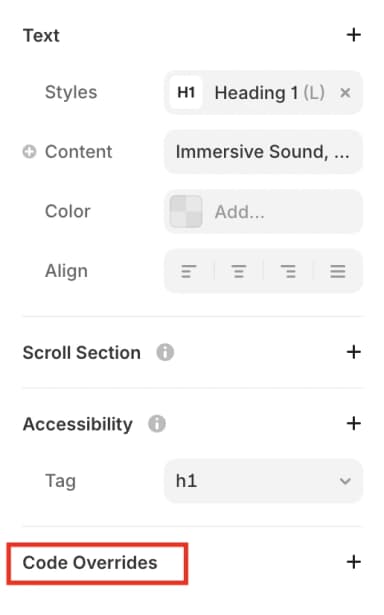
On the right panel, scroll down to Code Overrides section and expand it
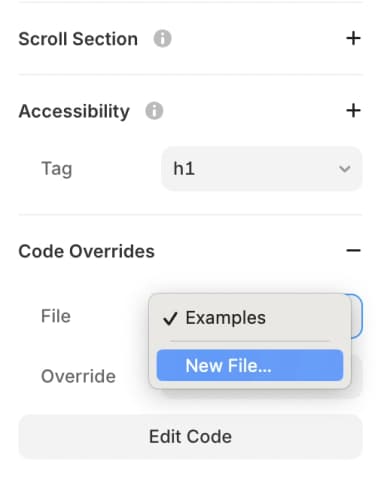
In the file field, click the dropdown, select New file, name your override (e.g., PixelFlowClasses), and click Create
Delete the content it creates and replace it with the following code:
import type { ComponentType } from "react"
export function AddPaymentInfo(Component): ComponentType {
    return (props) => {
        props.className
            ? (props.className += " action-btn-pymt-001-pf")
            : (props.className = "action-btn-pymt-001-pf")
        return <Component {...props} />
    }
}

export function Subscribe(Component): ComponentType {
    return (props) => {
        props.className
            ? (props.className += " action-btn-sub-002-pf")
            : (props.className = "action-btn-sub-002-pf")
        return <Component {...props} />
    }
}

export function Contact(Component): ComponentType {
    return (props) => {
        props.className
            ? (props.className += " action-btn-cntct-003-pf")
            : (props.className = "action-btn-cntct-003-pf")
        return <Component {...props} />
    }
}

export function InitiateCheckout(Component): ComponentType {
    return (props) => {
        props.className
            ? (props.className += " action-btn-buy-004-pf")
            : (props.className = "action-btn-buy-004-pf")
        return <Component {...props} />
    }
}

export function AddToCart(Component): ComponentType {
    return (props) => {
        props.className
            ? (props.className += " action-btn-cart-005-pf")
            : (props.className = "action-btn-cart-005-pf")
        return <Component {...props} />
    }
}

export function AddToWishlist(Component): ComponentType {
    return (props) => {
        props.className
            ? (props.className += " action-btn-wl-006-pf")
            : (props.className = "action-btn-wl-006-pf")
        return <Component {...props} />
    }
}

export function CompleteRegistration(Component): ComponentType {
    return (props) => {
        props.className
            ? (props.className += " action-btn-reg-007-pf")
            : (props.className = "action-btn-reg-007-pf")
        return <Component {...props} />
    }
}

export function CustomizeProduct(Component): ComponentType {
    return (props) => {
        props.className
            ? (props.className += " action-btn-cstm-008-pf")
            : (props.className = "action-btn-cstm-008-pf")
        return <Component {...props} />
    }
}

export function Donate(Component): ComponentType {
    return (props) => {
        props.className
            ? (props.className += " action-btn-don-009-pf")
            : (props.className = "action-btn-don-009-pf")
        return <Component {...props} />
    }
}

export function Lead(Component): ComponentType {
    return (props) => {
        props.className
            ? (props.className += " action-btn-lead-011-pf")
            : (props.className = "action-btn-lead-011-pf")
        return <Component {...props} />
    }
}

export function StartTrial(Component): ComponentType {
    return (props) => {
        props.className
            ? (props.className += " action-btn-trial-012-pf")
            : (props.className = "action-btn-trial-012-pf")
        return <Component {...props} />
    }
}

export function SubmitApplication(Component): ComponentType {
    return (props) => {
        props.className
            ? (props.className += " action-btn-submit-013-pf")
            : (props.className = "action-btn-submit-013-pf")
        return <Component {...props} />
    }
}

export function SearchInput(Component): ComponentType {
    return (props) => {
        props.className
            ? (props.className += " action-inpt-srch-014-pf")
            : (props.className = "action-inpt-srch-014-pf")
        return <Component {...props} />
    }
}

export function SearchButton(Component): ComponentType {
    return (props) => {
        props.className
            ? (props.className += " action-btn-srch-015-pf")
            : (props.className = "action-btn-srch-015-pf")
        return <Component {...props} />
    }
}

export function FindLocationInput(Component): ComponentType {
    return (props) => {
        props.className
            ? (props.className += " action-inpt-loc-016-pf")
            : (props.className = "action-inpt-loc-016-pf")
        return <Component {...props} />
    }
}

export function FindLocationButton(Component): ComponentType {
    return (props) => {
        props.className
            ? (props.className += " action-btn-loc-017-pf")
            : (props.className = "action-btn-loc-017-pf")
        return <Component {...props} />
    }
}

export function Purchase(Component): ComponentType {
    return (props) => {
        props.className
            ? (props.className += " action-btn-plc-ord-018-pf")
            : (props.className = "action-btn-plc-ord-018-pf")
        return <Component {...props} />
    }
}

export function ViewContent(Component): ComponentType {
    return (props) => {
        props.className
            ? (props.className += " action-btn-vc-019-pf")
            : (props.className = "action-btn-vc-019-pf")
        return <Component {...props} />
    }
}

export function ProductsListContainer(Component): ComponentType {
    return (props) => {
        props.className
            ? (props.className += " info-chk-itm-ctnr-pf")
            : (props.className = "info-chk-itm-ctnr-pf")
        return <Component {...props} />
    }
}

export function ProductsListTotalPrice(Component): ComponentType {
    return (props) => {
        props.className
            ? (props.className += " info-totl-amt-pf")
            : (props.className = "info-totl-amt-pf")
        return <Component {...props} />
    }
}

export function ProductContainer(Component): ComponentType {
    return (props) => {
        props.className
            ? (props.className += " info-chk-itm-pf")
            : (props.className = "info-chk-itm-pf")
        return <Component {...props} />
    }
}

export function ProductId(Component): ComponentType {
    return (props) => {
        props.className
            ? (props.className += " info-itm-id-pf")
            : (props.className = "info-itm-id-pf")
        return <Component {...props} />
    }
}

export function ProductPrice(Component): ComponentType {
    return (props) => {
        props.className
            ? (props.className += " info-itm-prc-pf")
            : (props.className = "info-itm-prc-pf")
        return <Component {...props} />
    }
}

export function ProductQuantity(Component): ComponentType {
    return (props) => {
        props.className
            ? (props.className += " info-itm-qnty-pf")
            : (props.className = "info-itm-qnty-pf")
        return <Component {...props} />
    }
}

export function FormContainer(Component): ComponentType {
    return (props) => {
        props.className
            ? (props.className += " info-frm-cntr-pf")
            : (props.className = "info-frm-cntr-pf")
        return <Component {...props} />
    }
}

export function FormValueOrPrice(Component): ComponentType {
    return (props) => {
        props.className
            ? (props.className += " info-val-pf")
            : (props.className = "info-val-pf")
        return <Component {...props} />
    }
}

export function FormFullNameInput(Component): ComponentType {
    return (props) => {
        props.className
            ? (props.className += " info-cust-full-name-pf")
            : (props.className = "info-cust-full-name-pf")
        return <Component {...props} />
    }
}

export function FormFirstNameInput(Component): ComponentType {
    return (props) => {
        props.className
            ? (props.className += " info-cust-fn-pf")
            : (props.className = "info-cust-fn-pf")
        return <Component {...props} />
    }
}

export function FormLastNameInput(Component): ComponentType {
    return (props) => {
        props.className
            ? (props.className += " info-cust-ln-pf")
            : (props.className = "info-cust-ln-pf")
        return <Component {...props} />
    }
}

export function FormEmailInput(Component): ComponentType {
    return (props) => {
        props.className
            ? (props.className += " info-cust-em-pf")
            : (props.className = "info-cust-em-pf")
        return <Component {...props} />
    }
}

export function FormPhoneInput(Component): ComponentType {
    return (props) => {
        props.className
            ? (props.className += " info-cust-ph-pf")
            : (props.className = "info-cust-ph-pf")
        return <Component {...props} />
    }
}

export function FormSearchLocationInput(Component): ComponentType {
    return (props) => {
        props.className
            ? (props.className += " info-srch-ctnr-pf")
            : (props.className = "info-srch-ctnr-pf")
        return <Component {...props} />
    }
}
You only need to create this file once. After it's created, you can reuse it for all elements you want to track on your Framer site.
Applying Event Classes to Elements
Click on the element you want to track in Framer Designer
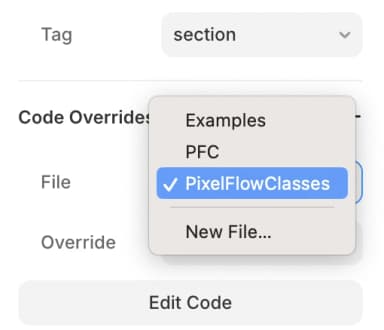
In the Code Overrides section, select your created file (e.g., PixelFlowClasses) in the file field
Use the Classes Document to find which class corresponds to the event you want to track
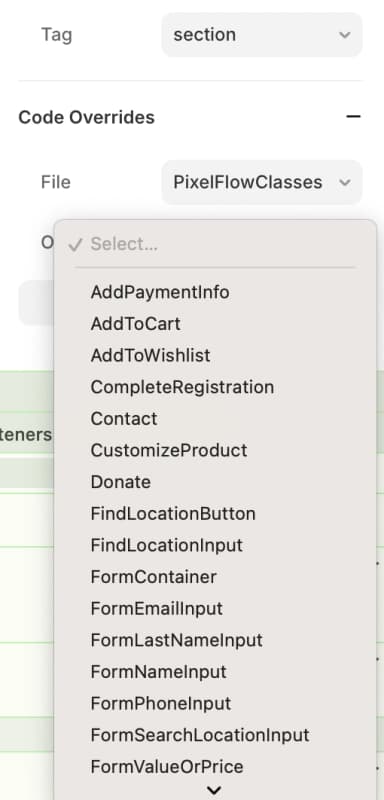
Click on the Override field in Framer Designer and select the appropriate class from the dropdown (e.g., AddPaymentInfo or Subscribe)
Once done, publish your website to apply the changes
Make sure to publish your Framer site after adding event classes. Changes won't take effect until the site is live.
Example: Tracking a Subscribe Button
If you want to track a "Subscribe" event every time someone clicks a specific "Subscribe" button on your Framer website:
Find the Subscribe class from the Classes Document:
action-btn-sub-002-pfClick on your Subscribe button in Framer Designer
In the Code Overrides section, select your PixelFlowClasses file
In the Override dropdown, select Subscribe
Publish your website
Once published, PixelFlow will automatically track Subscribe events whenever users click that button and send the data to Meta.
Tracking Form Submissions
To track form submissions and capture user data (name, email, phone), you need to add overrides to both the form container and individual input fields:
Add FormContainer override to your form container element
Add the appropriate action override to your submit button (e.g., Lead for a Lead event)
Add data extraction overrides to your input fields:
FormNameInput for first name input
FormEmailInput for email input
FormPhoneInput for phone input
FormLastNameInput for last name input
Each override corresponds to a specific PixelFlow class. For example, FormNameInput applies the info-cust-fn-pf class, and FormEmailInput applies the info-cust-em-pf class.
Verifying Your Setup
After adding overrides to your elements and publishing:
Visit your page on the live website (not in preview mode)
Right-click the element and select Inspect or Inspect Element
In the developer tools, verify that the PixelFlow class appears in the HTML code for that element
Test the tracking by triggering the event (clicking the button, submitting the form, etc.)
Check your PixelFlow dashboard to confirm the event was captured
Common Issues and Solutions
Override Not Appearing in Dropdown
Make sure you created the override file and pasted the complete code
Verify that the code doesn't have any syntax errors
Try refreshing Framer Designer or closing and reopening the project
Events Not Tracking in PixelFlow Dashboard
Verify the PixelFlow script is installed correctly (check the Framer Setup guide)
Confirm you published your site after adding the overrides
Make sure you selected the correct override from the dropdown
Check your browser console for JavaScript errors that might prevent tracking
Form Data Not Being Captured
Ensure FormContainer override is added to the form wrapper element
Verify input field overrides are added to the actual input elements, not labels or wrappers
Make sure the override names match exactly what's in the code file
What's Next
View the complete list of available classes in the Classes Document
Learn about tracking events via URLs as an alternative method
Complete the Framer setup if you haven't already