
WordPress Setup (Using Plugin)
This article guides you through the process of how to set up the Facebook Conversions API on WordPress.
Overview
This guide will walk you through installing the PixelFlow WordPress plugin and setting up Meta Pixel tracking via the PixelFlow dashboard. After completing these steps, you'll be tracking Page View events on your website and ready to configure advanced tracking.
Prerequisites
WordPress admin access with permission to install plugins
A Meta Business Manager account with access to your Meta Pixel credentials
Remove any existing Facebook Pixel scripts to avoid duplicate tracking
If you currently have the Facebook Pixel script installed on your WordPress site, you'll need to remove it after setting up PixelFlow. Running both scripts simultaneously will cause duplicate event tracking. PixelFlow loads both the Facebook Pixel and Conversions API automatically.
1. Login or Register to PixelFlow Dashboard
Before starting the setup process, you'll need a PixelFlow account.
If you're a new user, you'll create your account during the plugin authentication step (Step 4 below)
If you're an existing user, you'll log in during the authentication step
A free 7-day trial starts automatically with no credit card required
You don't need to visit the dashboard first—authentication happens directly through the WordPress plugin when you open it.
2. Install the PixelFlow WordPress Plugin
Download the PixelFlow plugin from here
After installation completes, click Activate
Installation complete: The PixelFlow plugin is now activated and available in your WordPress admin menu.
3. Open PixelFlow Plugin Settings
Navigate to Settings → PixelFlow Settings in your WordPress admin menu
Or click the Settings link directly under the plugin name in your Plugins list
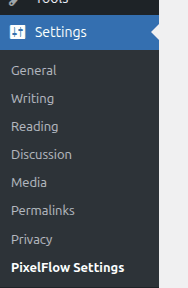

You can access PixelFlow settings anytime by visiting: /wp-admin/options-general.php?page=pixelflow-settings
4. Login to the Plugin
When you first open PixelFlow Settings, you'll see a Welcome screen with authentication options.
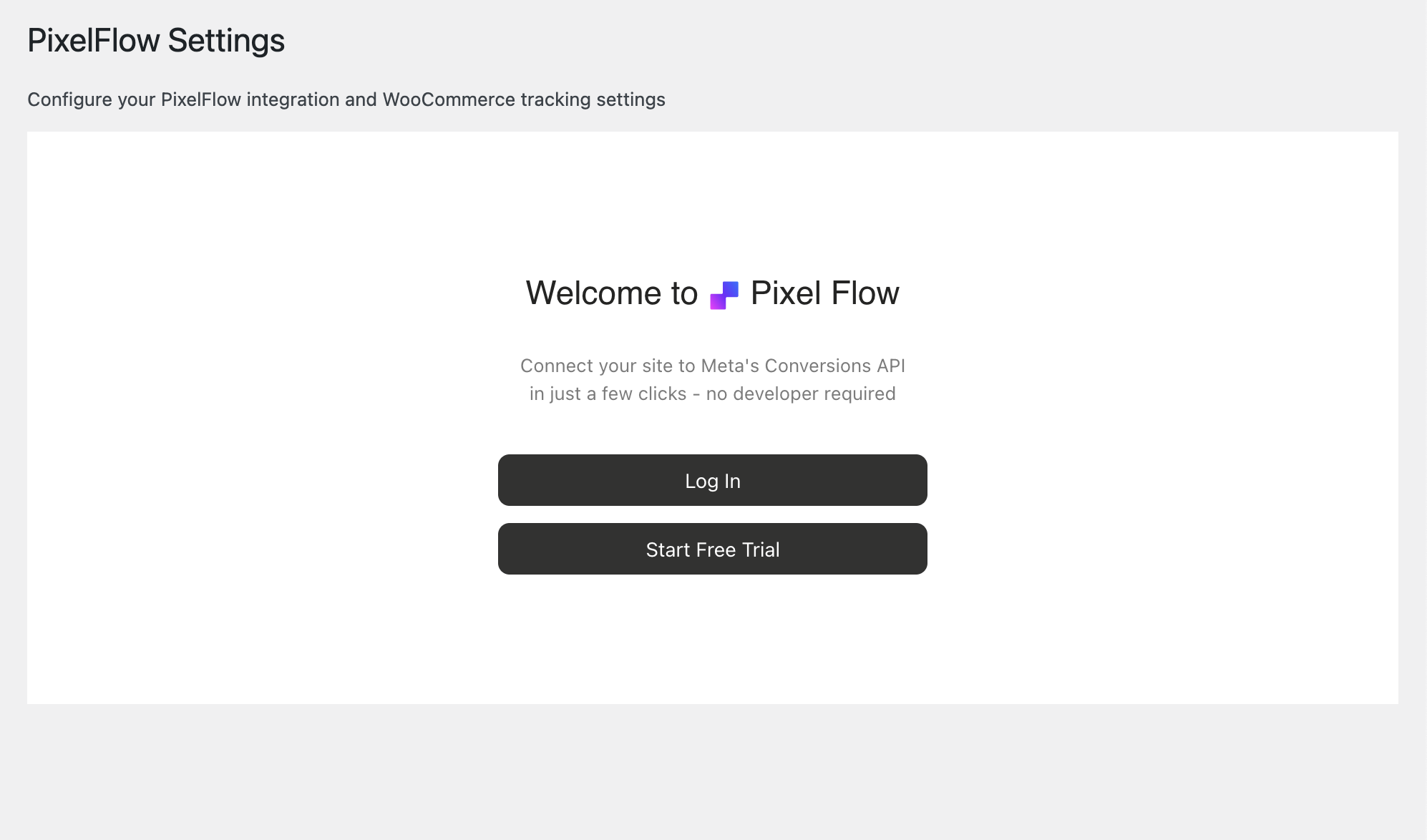
For existing PixelFlow users:
Click Login
A popup window will open directing you to the PixelFlow login page
Enter your email and password, OR use Sign in with Google
After successful authentication, the popup will automatically close
Return to your WordPress admin panel—the plugin will now show as authenticated
For new users:
Click Start Free Trial
A popup window will open directing you to the PixelFlow registration page
Create your account with email and password, OR use Sign in with Google
Complete registration
The popup will automatically close after authentication
Return to your WordPress admin panel—the plugin will now show as authenticated
Allow popups: The authentication process requires a popup window. If your browser blocks popups, you'll need to allow them for your WordPress site to complete login.
Authentication timeout: You have 5 minutes to complete the login process. If the session expires, simply click Login or Start Free Trial again to generate a new session.
5. Wizard Auto-Opens: Autosync or Manual Site Sync
After authentication, you'll be directed to the PixelFlow dashboard where the setup wizard will automatically open and guide you through the remaining steps.
Automatic Sync (recommended):
PixelFlow will attempt to automatically detect your WordPress site domain
If successful, your domain and currency will be pre-filled
The WordPress plugin will sync automatically with the dashboard
Manual Sync (if autosync fails):
If automatic detection doesn't work, you'll see a warning message
In your WordPress plugin settings, find the Site ID field
Click "Click here to copy your site ID" to copy it to your clipboard
Return to the PixelFlow dashboard wizard and paste the Site ID in the provided field
This will manually sync your WordPress site with the dashboard
The wizard uses a 4-step process with visual navigation to guide you through setup. You can move between steps as needed.
6. Add Site Domain and Currency
In the first step of the wizard, configure your site details:
Your WordPress domain will be automatically detected and displayed
Select your currency from the dropdown (optional, used for eCommerce tracking)
Click Continue to proceed to the next step
Your WordPress site is now connected to PixelFlow and will appear in your Sites list in the dashboard.
7. Add Your Meta Pixel
PixelFlow loads both your Facebook Pixel and Facebook Conversions API simultaneously with automatic event deduplication. This ensures the most accurate tracking while bypassing ad blockers and iOS restrictions.
In the second wizard step, you'll add your Meta Pixel credentials:
Enter a Pixel Name (can be any name for your reference, e.g., "Main Website Pixel")
Add your Meta Pixel ID (also called Dataset ID; find this in Facebook Events Manager)
Add your Meta Pixel Access Token (generate this in Facebook Events Manager under Settings)
Check the box to confirm you've removed any existing native Meta Pixel
Click Add Pixel to save
Need help finding your credentials? Check out our guide: How to Find Your Meta Pixel ID and Access Token
8. Activate PixelFlow in WordPress Plugin
Now that your pixel is configured in the dashboard, return to your WordPress admin panel to activate tracking. You'll see that the information between your dashboard and the plugin is synchronized.
Go back to Settings → PixelFlow Settings in WordPress
Toggle ON the Activate PixelFlow switcher
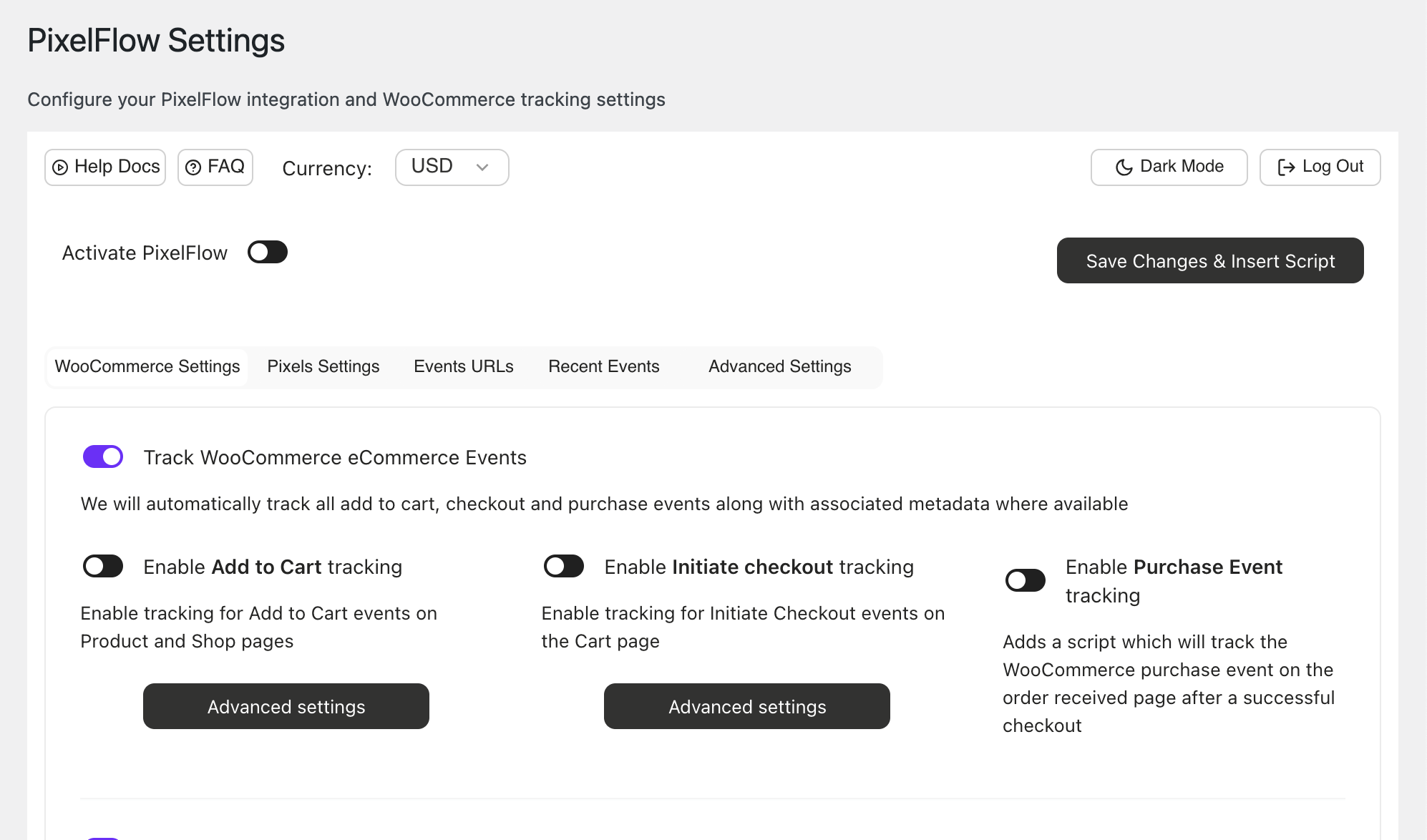
Click the Save Changes & Insert Script button
Your PixelFlow tracking script is now active! PixelFlow will automatically begin tracking Page View events on your WordPress site within 2-3 minutes.
Clear your cache: If you use any caching plugin (such as WP Rocket, W3 Total Cache, or WP Super Cache), you must clear your cache to ensure the PixelFlow script loads on your live website.
Automatic Script Updates: After you activate PixelFlow, your script will automatically be updated to apply any new changes. New website visitors will receive an update immediately, those who currently use your website will receive it in up to 5 mins (when script cache is invalidated). No additional action is required from your end. However, if you added your script before the 27th November 2024, you'll need to update it one last time to the latest version of the script which will update itself going forward.
9. Interact with Your Site and See Confetti
The final wizard step helps you verify your setup is working correctly.
Visit your live website in a new browser window or incognito/private mode
Navigate to a few pages on your site (e.g., homepage, then click some links)
Return to the PixelFlow wizard—it will automatically poll for events every 10 seconds
When the first Page View event is detected, you'll see:
A confetti animation (purple, pink, and blue particles from center screen)
A green congratulations modal: "Congratulations! Your WordPress site is now connected to PixelFlow"
The wizard will close automatically
Your site status will change to "Connected" in the Pixels table on your Overview page
Setup complete! PixelFlow is now tracking Page View events on your website. Events should appear in your PixelFlow dashboard within 2-3 minutes.
No events appearing? If you don't see events after a few minutes, verify that:
"Activate PixelFlow" is toggled ON in the plugin
You clicked "Save Settings & Insert Script"
You cleared your cache (if using a caching plugin)
You're visiting the live site (not a local development environment)
Additional verification:
Check the PixelFlow Events page in your dashboard
Check Facebook Events Manager to confirm events are arriving (look for both "Browser" and "Server" sources)
For detailed verification steps, see How to Test and Verify Your PixelFlow CAPI Setup.
10. Set Other Tracking
After the wizard closes, you can configure additional event tracking beyond Page Views.
Available tracking options:
Event Classes: Track form submissions, button clicks, and custom interactions using CSS classes—see Event Classes on WordPress
Tracking URLs: Track specific page visits, button clicks, or link interactions—see How to Track Events
Form Submissions: Capture lead data from contact forms—see How to Track Events for Form Submissions
Calendly Integration: Automatically track Lead or Schedule events when users book calls—see How to Track Calendars & Call Bookings
WooCommerce Auto-Tracking: Automatically track product views, add to cart, checkout, and purchases (see Advanced Configuration below)
All tracking is unlimited on every plan, with no limits on events or pixels.
Access these settings from your PixelFlow dashboard Overview page or the Events page. Each site can have custom tracking configurations.
Advanced Configuration
Exclude Script for User Roles
You may not want to track events for yourself, editors, or other WordPress user roles. By default, all site visitor actions are tracked.
To exclude specific user roles from tracking:
In Settings → PixelFlow Settings, scroll to the Advanced section
Select the user roles you want to exclude (Administrator, Editor, Shop Manager, etc.)
Click Save Settings
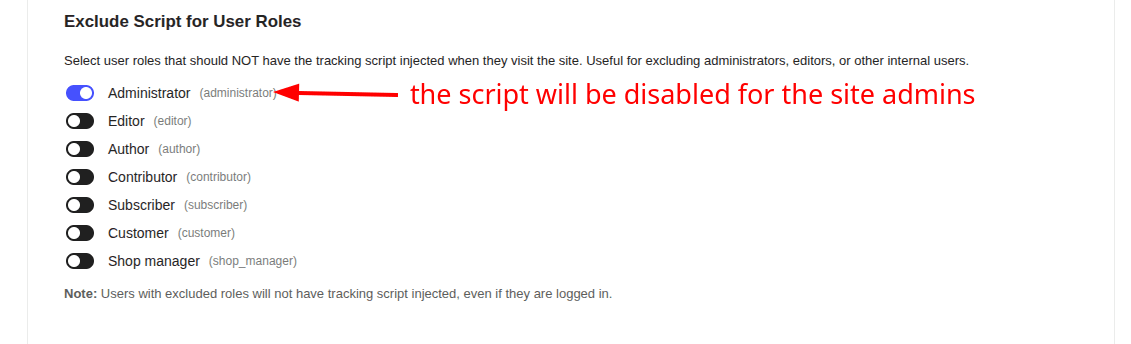
Excluding admin and editor roles prevents test actions from inflating your event counts and ensures your Meta Ads data stays accurate.
WooCommerce Integration
If you have WooCommerce installed and active on your website, PixelFlow can automatically add all required tracking classes to your product pages, cart, and checkout.
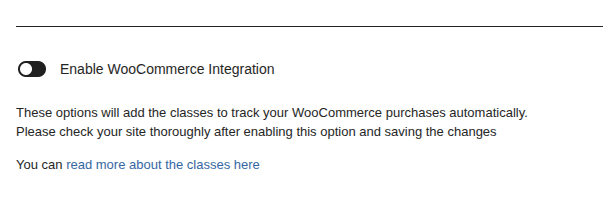
In Settings → PixelFlow Settings, find the Enable WooCommerce Integration section
Toggle ON Enable WooCommerce Integration
Click Save Settings
WooCommerce integration relies on hooks and filters. Your theme may modify these, so it's strongly recommended to test all important pages after enabling: Product page, Cart, and Checkout.
After enabling WooCommerce integration, you'll see additional configuration options:
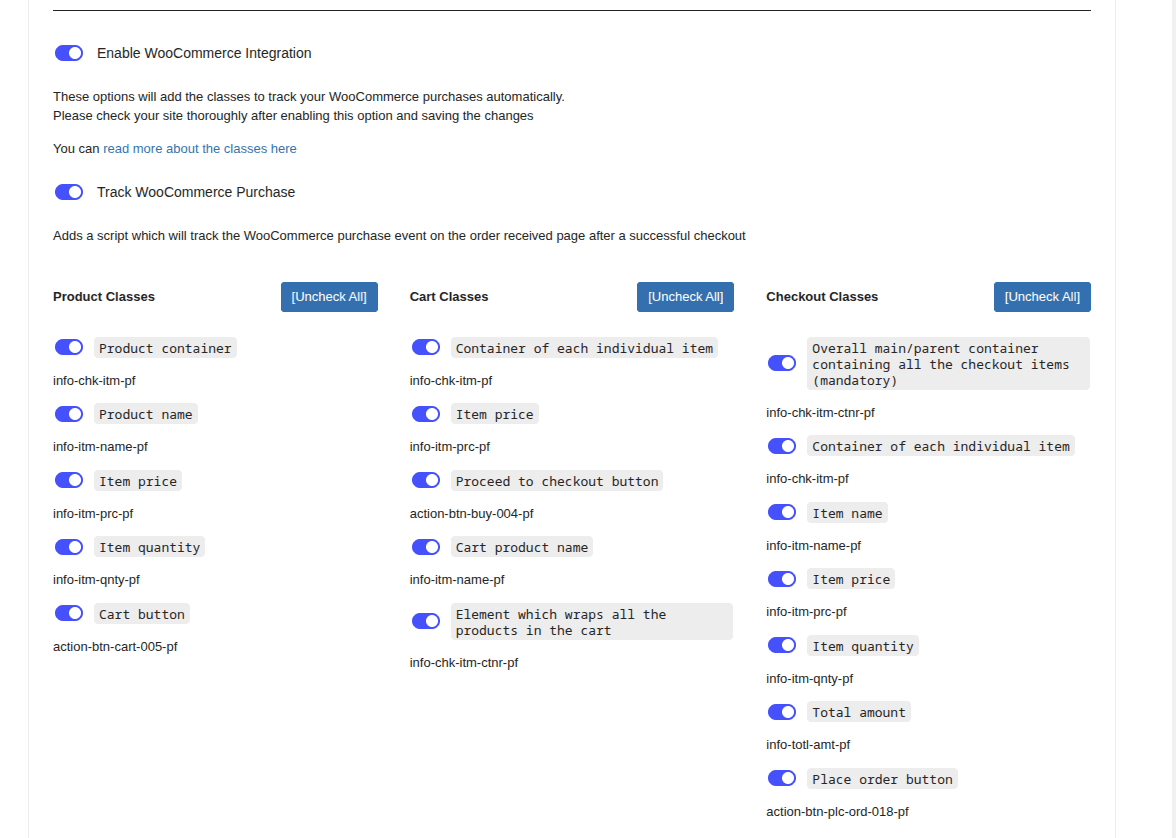
If you experience any page layout issues or loading problems, you can disable specific classes in the WooCommerce integration settings. Don't forget to save the settings after making changes!
WooCommerce Integration Debug
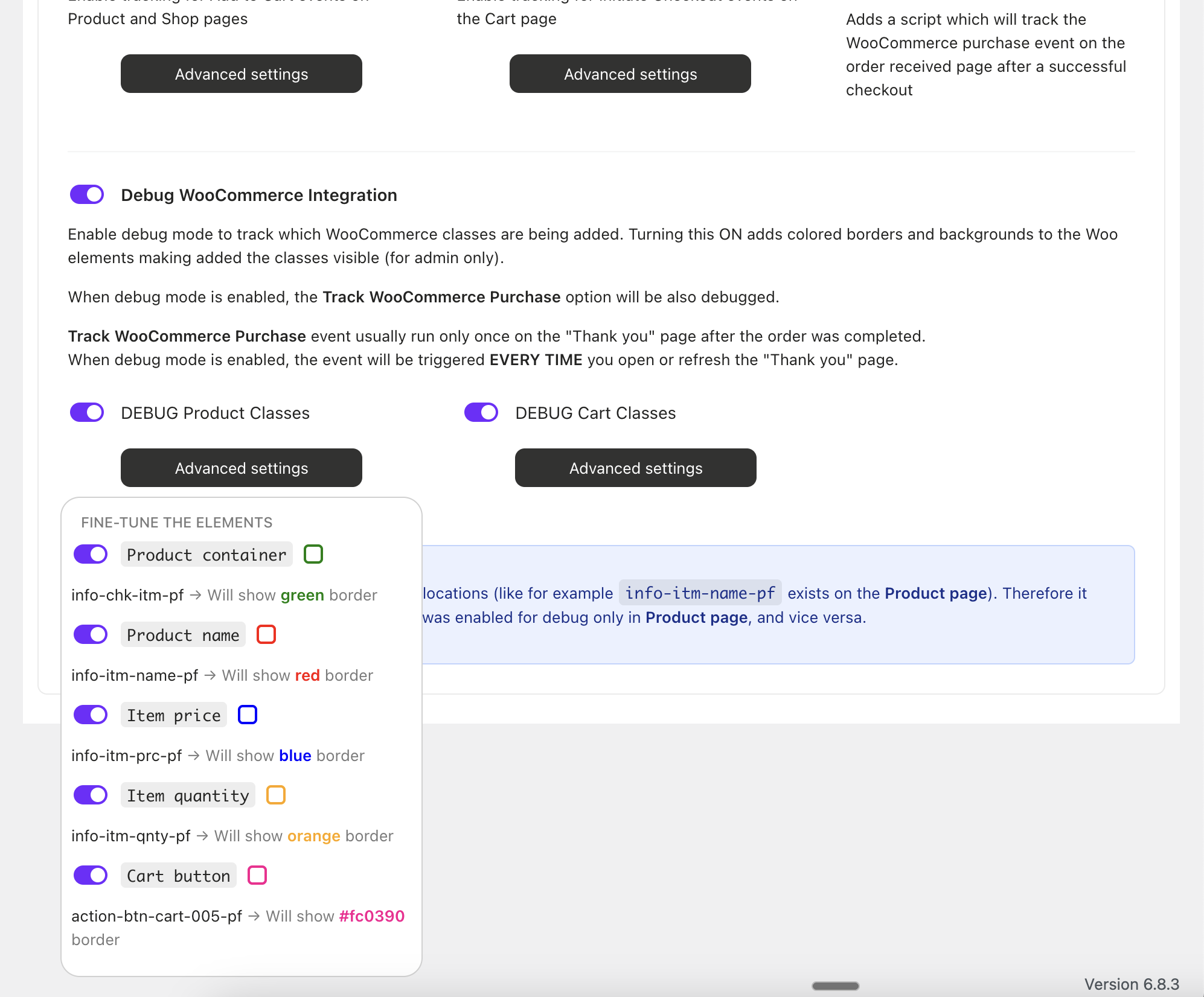
You can enable visual debugging to verify which elements are being tracked.
In the WooCommerce integration settings, toggle ON Debug WooCommerce Integration
This adds visual styles (borders or backgrounds) to tracked elements for easy identification
Visit your product pages, cart, and checkout to see highlighted elements
Disable debugging mode when you've finished verification
WooCommerce Purchase Tracking
The Purchase event is automatically triggered on the Order Received page when Track WooCommerce Purchase is enabled.

How it works:
The event is sent only once when a customer lands on the Order Received page after completing checkout
Events from excluded user roles (admin, shop manager) will not be tracked
When Debug WooCommerce Integration is enabled, you'll see the event confirmation each time you visit the Order Received page for testing purposes

Automatic Script Updates: Your PixelFlow script will automatically be updated to apply any new changes. New website visitors will receive an update immediately, those who currently use your website will receive it in up to 1 mins (when script cache is invalidated). No additional action is required from your end. However, if you added your script before the 27th November 2025, you’ll need to update it one last time to the latest version of the script which will update itself going forward
Troubleshooting
Symptom | Likely Cause | Solution |
|---|---|---|
Login window doesn't appear | Popup blocker is enabled | Allow popups for your WordPress site in browser settings, then click Login again |
"Authentication timeout" error | Took longer than 5 minutes to complete login | Return to WordPress admin and click Login or Start Free Trial to generate a new session |
"An account with this email already exists" | Email is already associated with an email/password account | Log in with your email and password instead of Google OAuth |
Autosync fails in dashboard wizard | WordPress site information couldn't be detected | Copy the Site ID from the WordPress plugin settings and paste it into the dashboard wizard manually |
No events appearing in PixelFlow dashboard | Cache not cleared or script not enabled | Verify that "Activate PixelFlow" is toggled ON, click "Save Settings & Insert Script," then clear your cache |
Events not appearing in Facebook Events Manager | Incorrect Pixel ID or Access Token | Go to the PixelFlow dashboard, verify your pixel credentials, and click "Save Settings & Insert Script" in WordPress |
No confetti after interacting with site | Events not reaching PixelFlow or wizard timeout | Wait 2-3 minutes and check the Events page manually. Wizard polls for 1 hour max |
WooCommerce integration not visible | WooCommerce plugin is not installed or activated | Install and activate WooCommerce first, then refresh PixelFlow Settings |
Duplicate events in Meta Events Manager | Facebook Pixel script still installed alongside PixelFlow | Remove the native Facebook Pixel script from your WordPress site (in theme files, header/footer scripts, or other plugins) |
Limitations
Popup requirement: Authentication requires a popup window. If your browser blocks popups, you must allow them to complete login.
Session timeout: Authentication sessions expire after 5 minutes. If you don't complete login within this window, you'll need to restart the process.
Manual return to WordPress: After authentication in the popup window, you must manually return to your WordPress admin panel—there is no automatic redirect.
Wizard polling window: The verification step polls for events for up to 1 hour. After that, check the Events page manually.
WooCommerce theme compatibility: Some themes use custom WooCommerce templates. If automatic class assignment doesn't work correctly, you may need to manually add classes to your theme files.
Cache must be cleared: Changes won't appear on your live site until you clear your caching plugin.
Getting Help
If you're experiencing issues with your WordPress setup:
Check that you've completed all 10 setup steps and cleared your cache
Verify your Meta Pixel ID and Access Token are correct in the PixelFlow dashboard
Use browser developer tools (F12) to check for JavaScript errors on your site
Visit the PixelFlow Events page to confirm events are being received
Contact PixelFlow support at [email protected] or book a free setup call
When contacting support, please provide:
Your WordPress site URL
Screenshots of any error messages
Whether you're seeing events in your PixelFlow dashboard
Whether you're seeing events in Facebook Events Manager
Your WooCommerce version (if using WooCommerce integration)